 Plotra Docs
Canon and the world bible
Keep a long story consistent. What the canon tools are and which module each belongs to, then the world bible, canon status and retcons.
This is the part of Plotra that other writing tools don't have. It answers three questions that get harder with every book: what is actually true in this world, what has the audience been told so far, and who in the story knows it. With those answered in the project, a series stays consistent without you rereading it, and a contradiction is found by you, not by a reader.
These tools belong to two modules.
| Module | What it adds |
|---|---|
| World bible | Entity types of your own, canon status and retcon history, the Continuity view with its checks and character sheets. |
| Releases & reveals | Releases, reveals and channels, the spoiler horizon, the Release roadmap and Secrets & setups views. |
A tabletop RPG project starts with both on. A franchise project starts with World bible. Every other type starts with neither: turn them on in the Modules tab of Project settings, which needs someone who manages the project. Turning a module off hides its tools and keeps everything you recorded. See Modules.
Everyone who can open the project can read all of this. Changing it needs edit access: viewers and commenters see the same views with the controls switched off.
The world bible
Characters and locations are built in. For everything else, define your own entity types: a faction, an object, a species, a magic system, a legal case. Each type has its own name, icon, colour and fields.
Every page of a type is an ordinary note, a World entry. It has a body, tags, a synopsis and a canon status, it can be linked with [[, it has backlinks, and it appears in the graph. Its fields show in the Properties panel. The Codex view (⌘⇧C) lists the pages by type; see World views.
The types you start with
The first time the project is opened with World bible on, it gets nine types. Rename, reshape or delete any of them.
| Type | Fields |
|---|---|
| Faction | Kind (Nation, Organisation, Guild, Family, Cult, Company), Leader (a character), Based in (a location), Goal |
| Object | Owner (a character), Kept at (a location), Significance |
| Event | Story date, Location (a location), Participants (several characters) |
| Species | Habitat, Lifespan, Sapient (a checkbox) |
| Culture | Homeland (a location), Values |
| Language | Family, Script |
| Religion | Deities, Tenets |
| System | Source, Limits & costs |
| Theme | Statement |
With the Interactive narrative module on, a Quest type is added too. See Interactive narrative.
A project with no types at all gets the nine again the next time it is opened. Keep at least one type if you don't want them back.
Creating and editing a type
Open the type dialog from either place:
- the Codex view: New type… at the bottom of the list of types, or the pencil beside a type (Edit type and fields);
- Project settings, the Kinds tab: New kind…, or Edit beside a kind.
| Field | What it does |
|---|---|
| Name | What one page is called: "Faction". Required, up to 80 characters. It is the name used in the binder's New… menu and in Change kind. |
| Plural | The heading of its section in the Codex. Left empty, it is the name with an "s". |
| Icon | One of 24 icons. |
| Colour | The colour of the icon in the binder, the Codex and the graph. |
| Fields | The properties every page of this type has. |
Each field has a name (up to 60 characters) and a type:
| Field type | Holds |
|---|---|
| Text | A line of text. |
| Number | A number. |
| Date | A date. |
| Select | One choice from a list. Type the Choices, separated by commas. |
| Multi-select | Several choices from a list. |
| Link to note | Another note. Under Links to, tick the kinds it may point at (none ticked means any note). Tick Several to let it hold more than one. |
| Checkbox | Yes or no. |
| URL | A web address. |
Use the arrows to reorder fields and the bin to remove one. Add a field adds a row. A field with no name is dropped when you save.
Things to know about fields:
- A field's type can't be changed once the type has been saved. Remove the field and add a new one.
- Removing a field hides its values; it doesn't erase them. Add a field with the same name again and they come back.
- A field that links to a note counts as a link: the page it points at lists this one under Backlinks.
- Limits: 40 fields per type, 100 choices per list, 60 types per project.
Delete type removes the type after a confirmation. Its pages stay in the binder as plain notes, with their text untouched.
Creating a page
With World bible on, each type has an entry in the binder's New… menu. In the Codex, select the type and press the plus beside the search box. To turn an existing note into a page of a type, right-click it and choose Change kind. See The vault and the binder.
Canon status
Every note has a canon status. A new note is Draft.
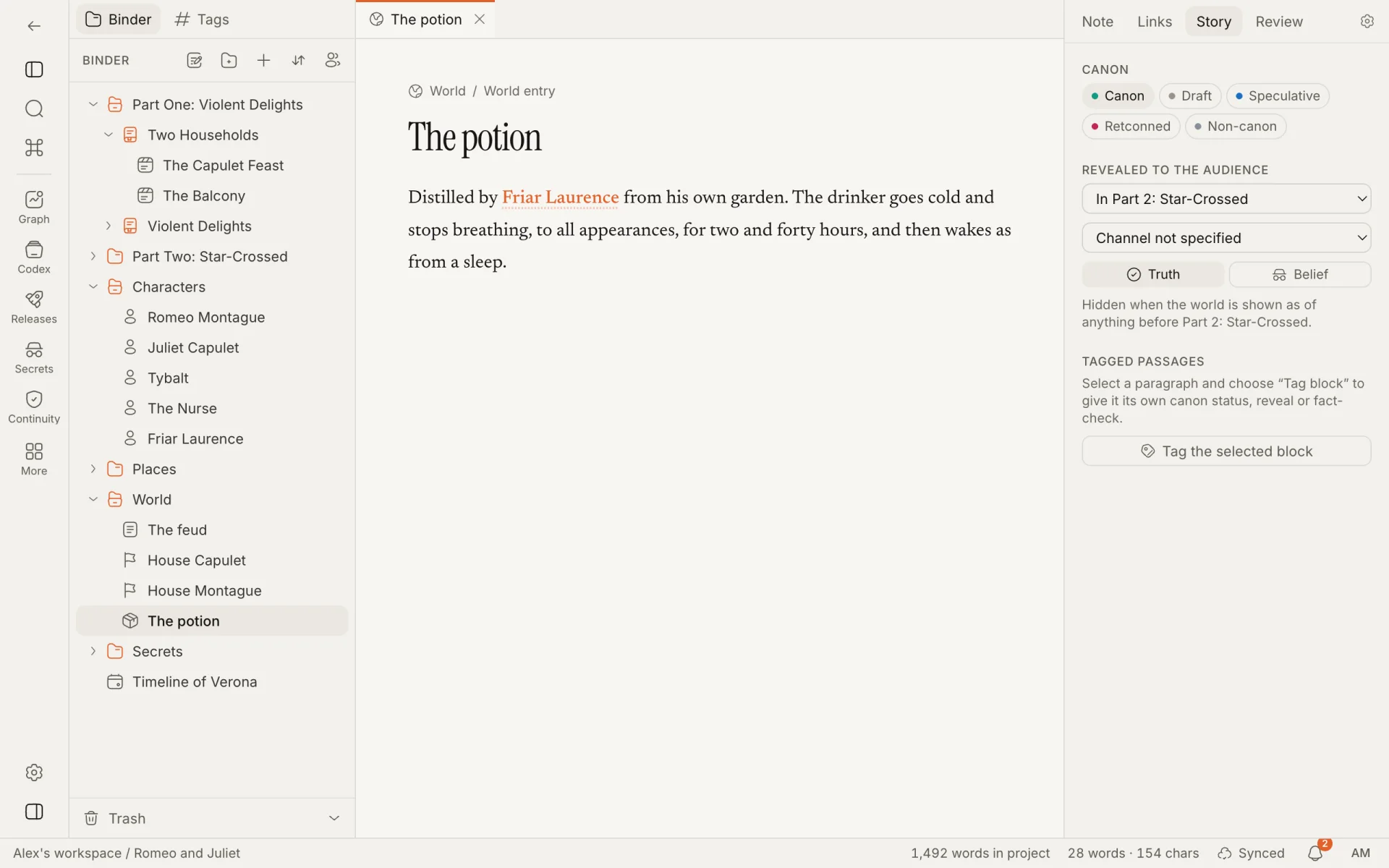
| Status | Meaning |
|---|---|
| Canon | Established. It is true in the story. |
| Draft | Still being worked out. |
| Speculative | An idea that may or may not make it in. |
| Retconned | Was canon, then changed. The old version is kept. |
| Non-canon | Outside the story's continuity. |
Set it in the Story tab of the inspector, under Canon: click a status and it applies at once. The Codex shows the status as a badge on each page.
Canon status is used in three places:
- the continuity checks warn when a canon scene links to something retconned or non-canon;
- the published wiki can be limited to Only canon pages and passages, see Publishing;
- the AI agent is told to respect it, and asks before changing it.
A note that is locked for review can't have its canon status or its reveal changed until it is unlocked.
Retcons keep their history
Choosing Retconned opens a short form instead of applying straight away.
- Say what changed and why: "Her brother survives: Book 3 needs him." The reason is required.
- Optionally pick the release it changed in, under Changed in…. The list appears once the project has releases.
- Press Retcon.
Plotra saves the note's text as it stands as a named version, "Before retcon:" followed by your reason, and adds an entry to the retcon history under the status buttons. Each entry shows the reason, the release it changed in, what the status was before, who did it and when. old text in History opens the History panel, where the saved version is kept. See Version history.
A note can be retconned more than once; every entry is kept, newest first. Moving a note away from Retconned later doesn't remove its history.
One block can differ from its note
A character page can be canon while one line on it is still speculative. Put the cursor in a block and press ⌘⌥T to give that block its own canon status. See Block tags.
The Story tab
The Story tab of the inspector gathers a note's canon and reveal settings. It appears when World bible, Releases & reveals or Research & sources is on. "Show canon and reveals" in the command palette opens it.
| Section | Needs | Covered in |
|---|---|---|
| Canon and the retcon history | World bible | Canon status |
| Revealed to the audience: release, channel, Truth / Belief | Releases & reveals | Reveals |
| Tagged passages and Tag the selected block | Any of the three | Block tags |
Under the reveal, two lines explain the effect: which horizons hide the note, and, for a note with others inside it, that everything inside is revealed with it unless it has its own tag.
Things to know
- Block tags are indexed a few seconds after you stop typing, so the views lag slightly behind the editor.
- Releases, reveals, who-knows-what entries and setups are shared with everyone on the project. The spoiler horizon, dismissed continuity results and the continuity calendar are stored in your browser.
- Deleting a note for good removes its who-knows-what entries. A setup that pointed at it stays, with that side empty.
- A shared world lends its characters, places and entries to another project. It doesn't lend its releases: the borrowing project's horizon doesn't apply to shared pages.
How is this guide?
World views
The Graph, the Codex and the Relationships map in detail: filters, the local graph, browsing the world like a wiki, and how to relate two characters.
Releases, reveals and the spoiler horizon
Record what your story ships in and when the audience learns each thing, then see the whole project as readers know it at a given book, episode or session.