 Plotra Docs
Comments and suggestions
Talk about the text without changing it, and propose changes that someone accepts or rejects. Threads, mentions, reactions and suggesting mode.
Feedback stays in the draft, attached to the words it is about. A comment is a thread on a passage. A suggestion is a tracked change that is not final until someone accepts it.
Comments
Comments are how a reader or an editor talks about the text without changing it. Anyone who can comment can use them: commenters, editors and workspace members. Viewers can read comments but not write them.
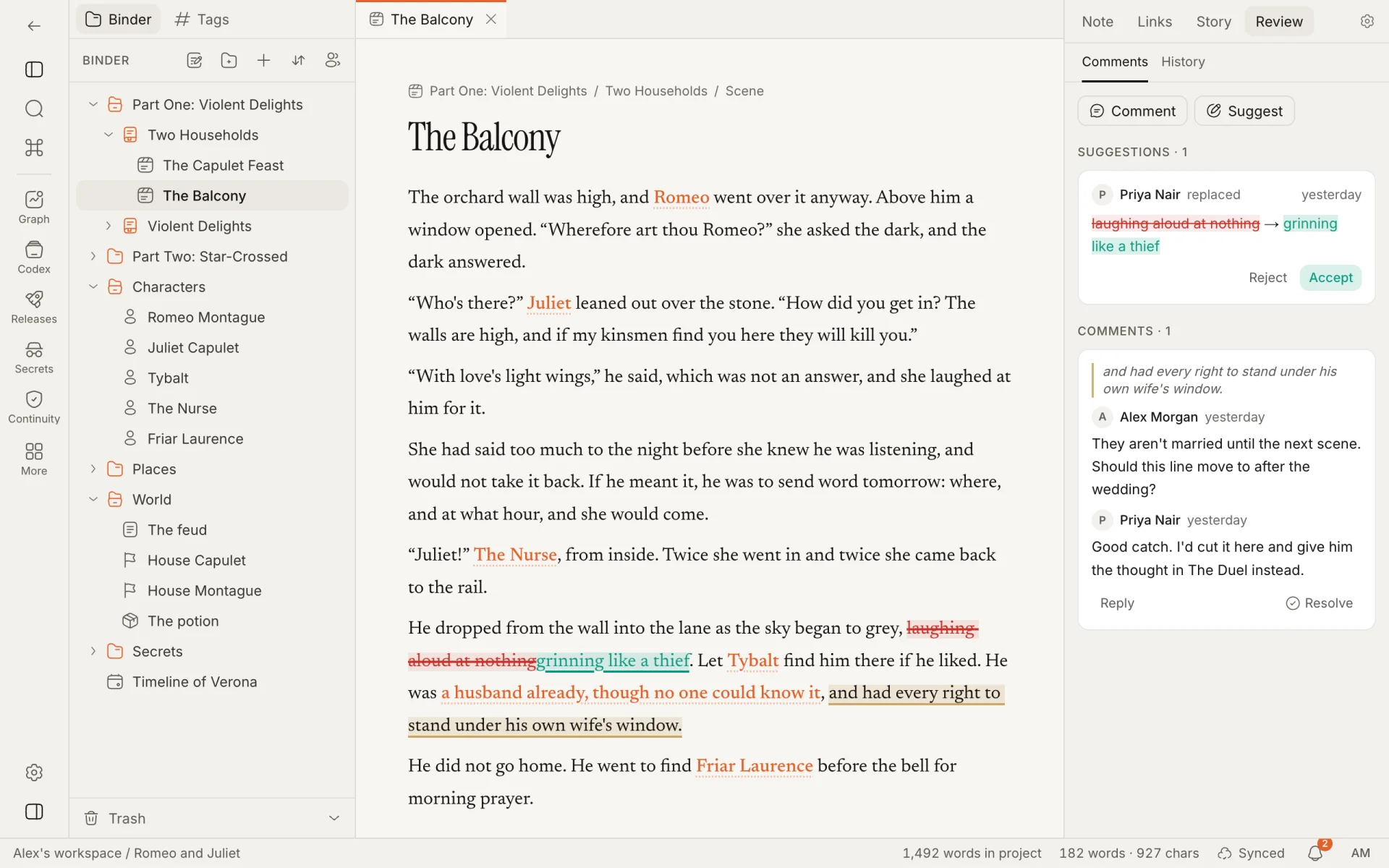
Comments live in the inspector, under Review → Comments. The "Show comments" command opens it.
Starting a thread
- Select the text you want to talk about.
- Press
⌘⌥M, or click Comment in the toolbar beside the selection, or Comment at the top of the Comments panel. - Write the comment and press
⌘↵, or click Comment.Esccancels.
The passage is highlighted in the text, and the thread quotes it. With nothing selected, the comment is On the whole note. Comments can be made on text notes; canvases, timelines and dialogues have no comments.
A comment can be up to 5,000 characters.
Threads
| Do this | And |
|---|---|
| Click a highlight in the text | The Comments panel opens on that thread. |
| Click a thread in the panel | The text scrolls to its passage. |
| Reply | Adds to the thread. Replying to a resolved thread reopens it. |
| Resolve | Closes the thread. Its highlight leaves the text and the thread moves under "n resolved" at the bottom of the panel. |
| Reopen | Brings a resolved thread back. |
| The pen on your own comment | Edits it. An edited comment is marked "edited". |
| The bin on a comment | Deletes it. You can delete your own; owners and admins can delete anyone's. When the last comment of a thread is deleted, the thread goes too. |
Anyone who can comment can resolve or reopen any thread.
A thread stays attached to its words as the text around them changes. If the passage itself is deleted, the thread stays in the panel with the words it quoted, and has no highlight.
Mentions
Type @ and the start of a name. Plotra suggests up to five members of the workspace; press ↵ to take the first, or click one. The mention is highlighted in the comment, and the person gets a notification.
Things to know
- Comments by someone who isn't a member of the workspace are shown to others under the name "Former member", because names come from the workspace's member list. The same happens to comments by someone who has left the workspace.
- Every new thread and reply is listed in the activity feed as "commented on", without its text.
- You can post up to 600 comments an hour.
- With the Review & editorial module on, the panel also collects one-click reactions; see Review and editorial.
Suggestions
Suggesting mode is track changes. What you type is marked as an insertion and what you delete as a deletion, and nothing is final until someone accepts or rejects it.
Turn it on with ⌘⇧E, the Suggest button at the top of the Comments panel, or the "Toggle suggesting (track changes)" command. While it is on, the button reads Suggesting and the trail above the note shows a Suggesting label; click the label to go back to editing directly. Suggesting is a switch for the sitting: it is off again when you reload the page.
In the text, a suggested insertion is underlined in green and a suggested deletion is struck through in red. The Comments panel lists them under Suggestions, each with who made it, what they did (added, deleted, replaced or formatted) and when.
| Button | What it does |
|---|---|
| Accept | Makes the change final. |
| Reject | Puts the text back as it was. |
| Accept all, Reject all | Do the same for every suggestion in the note. Shown when there is more than one. |
Only people who can edit can make suggestions, and only they can accept or reject them. Any editor can decide any suggestion, including their own. A commenter can comment but can't suggest. Viewers and commenters see the suggestions in the text and in the panel.
Things to know:
- Suggestions work in the editor and in the Manuscript view.
- Block tags and restored versions are applied directly, even while you are suggesting.
- Changes the AI agent proposes arrive as suggestions too, listed as "AI, for your name".
- A pending suggestion is part of the text until it is decided: the read-only link shows both the suggested additions and the text suggested for deletion as ordinary text.
- A suggestion by someone who isn't a workspace member is listed under "Someone".
How is this guide?