 Plotra Docs
Import and export
Bring a manuscript or a whole Obsidian vault in, and take your text out as Word, Markdown, plain text or PDF. What each format keeps and what it leaves behind.
Your writing is yours to move. Import turns Markdown, Word and plain-text files, or a whole folder of them, into chapters, scenes and notes. Export gives you the text back in a file any other program can open. Export is never held back by a plan limit.
This page covers the two dialogs, printing to PDF, and what survives a trip out and back in. E-books, the series bible and the public wiki are on the Publishing page.
Import
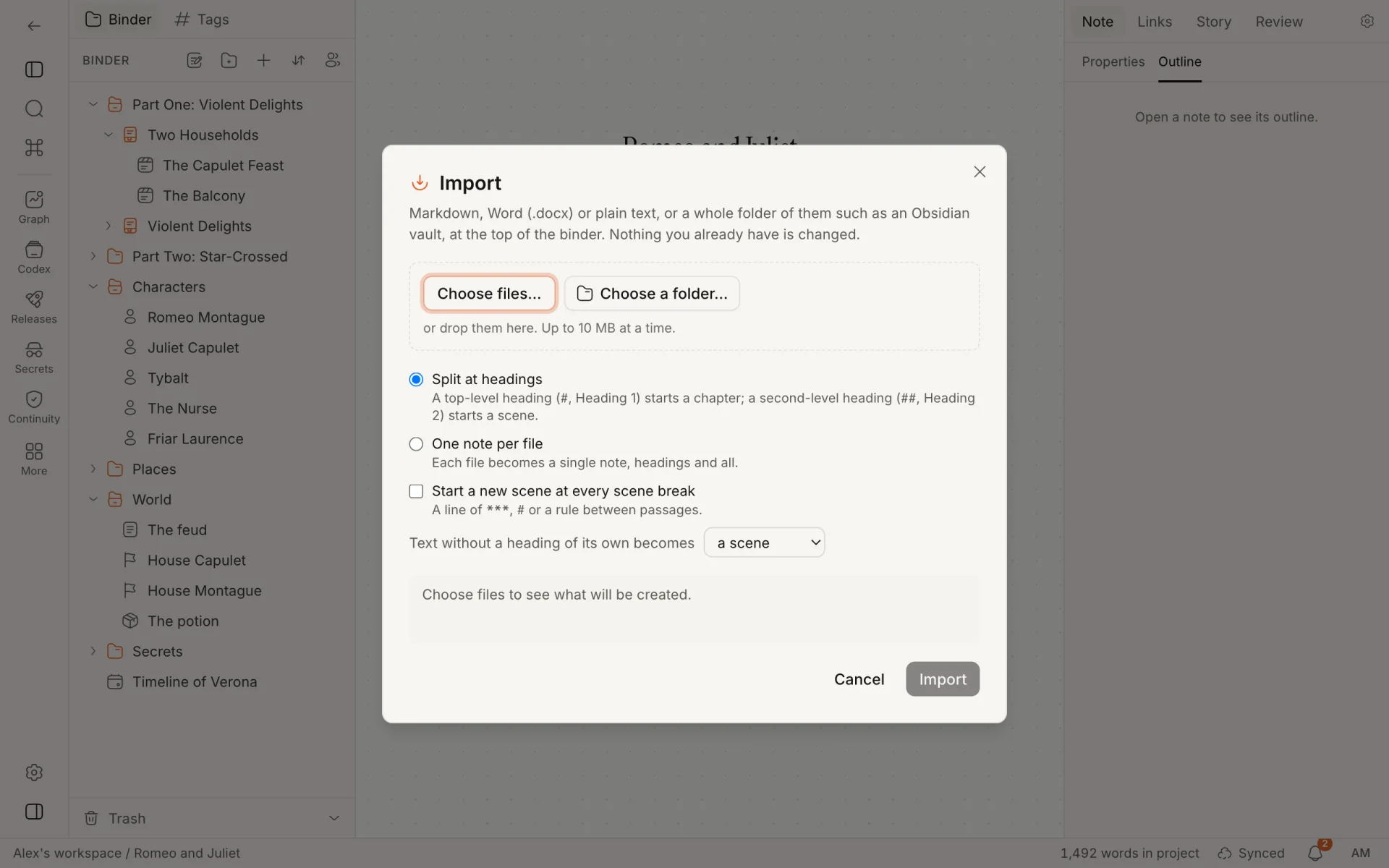
Opening the dialog
| From | Where the new notes go |
|---|---|
| New… at the top of the binder, then Import… | The top of the binder |
| Right-click a folder or a chapter, then Import… | Inside that folder or chapter |
| Command palette: "Import… (Markdown, Word, plain text, Obsidian vault)" | Inside the folder or chapter you have selected or open; otherwise the top of the binder |
The dialog's first line says where the notes will go: "into" the folder's name, or "at the top of the binder". If the folder is in the trash, or you may not edit it, the import goes to the top of the binder instead.
New notes are added after what is already there. Nothing you already have is changed.
What you can import
| Format | Extensions |
|---|---|
| Markdown | .md, .markdown, .mdown |
| Word | .docx |
| Plain text | .txt, .text |
A .doc file from an old version of Word is refused: save it as .docx first. Fountain screenplays have their own command; see Fountain.
There are three ways to hand files over:
- Choose files… opens a file picker. You can pick several.
- Choose a folder… takes a folder and everything under it. This is how you bring in an Obsidian vault.
- Drop files or folders on the dashed box.
Once something is chosen the buttons read Add files… and Add a folder…, so you can build one import from several places. Each file in the list has a Remove button, and Clear empties the list. The same file added twice is listed once.
From a folder, Plotra leaves out:
- anything in a folder or file whose name starts with a dot, such as
.obsidian,.trashand.git; - every file that is not Markdown, Word or plain text. The dialog counts them: "3 other files in the folder (pictures, canvases, PDFs) are left out".
The options
| Option | What it does | Starts as |
|---|---|---|
| Split at headings | A top-level heading (#, or Heading 1 in Word) starts a chapter. A second-level heading (##, Heading 2) starts a scene. | On |
| One note per file | Each file becomes a single note, headings and all. | On instead, when you choose a folder that has Markdown in it |
| Start a new scene at every scene break | A line of *** or a rule between passages starts a new scene. In Word and plain text, so does a line holding only #. | Off |
| Keep single line breaks | A new line in a Markdown note stays a new line, as Obsidian shows it. Leave it off for text that was wrapped by hand, where the lines of a paragraph should run together. Shown only when the import has Markdown in it. | Off; on when you choose a folder that has Markdown in it |
| Keep "(folder name)" as a folder | Shown when everything came from one folder. Off, the contents of that folder go straight into the binder. On, the folder itself is created too. | Off |
| Text without a heading of its own becomes | a scene or a note. This is the kind given to a whole file, and to text that sits before the first heading. | a note when every file is Markdown, otherwise a scene |
The preview
Before anything is created, the box at the bottom shows what the import would make: "Creates 2 folders, 12 chapters, 48 scenes · 81,204 words", then the tree of notes with their icons (the first 200). Change an option and the preview is worked out again. Import stays greyed out until there is a preview.
An import is all or nothing. If any file can't be read, the dialog names it and nothing is created.
When the import finishes, the binder selects the first new note. A single new note also opens in a tab.
How files become notes
With One note per file, each file is one note. Its title is the title in its front matter, or else the file's name without the extension.
With Split at headings, a file is cut at its # and ## headings:
| In the file | In the binder |
|---|---|
A # heading | A chapter with that title. Text under the heading, before the first ##, is the chapter's own text. |
A ## heading | A scene with that title, inside the chapter above it. |
A ### heading or deeper | Stays a heading inside the note. |
| Text before the first heading | A scene or a note (your choice) named after the file. |
No # or ## at all | One scene or note for the whole file. |
A file that is exactly one chapter, starting with its # heading, becomes that chapter. Any other file with headings gets a folder named after the file, and its chapters and scenes go inside.
With scene breaks on, a piece of text that has breaks in it is cut again:
- A whole file, or the text under a chapter heading, becomes a chapter holding "Scene 1", "Scene 2" and so on.
- The text under a
##heading becomes scenes side by side: "The Storm", "The Storm (2)".
Empty paragraphs at the start and end of each piece are dropped. A file with no text in it is an error ("That file is empty.").
Folders
A folder you import becomes a folder in the binder, with its own folders inside it, up to 12 levels deep. Within each folder, sub-folders come first in alphabetical order, then the notes. Notes are sorted by name the way a person would sort them ("Chapter 2" before "Chapter 10"), unless every file in the folder has an order in its front matter, as a Plotra export does. Then that order is used.
Front matter
A Markdown file may start with a block between two --- lines. Plotra reads four things from it and removes the block from the text:
| Key | Becomes |
|---|---|
title | The note's title, in place of the file name |
tags, tag or keywords | The note's tags. A list in brackets, a dashed list, or words separated by spaces or commas all work. A leading # is removed. Up to 50. |
aliases or alias | The note's aliases, which links can use. Up to 20. |
order | Where the note sits among its siblings |
Every other key is dropped. When a file is split into a folder of chapters, the tags go on the folder.
Links
[[Wiki-links]] become real links between notes.
| You wrote | You get |
|---|---|
[[Verona]] | A link to the note called Verona |
[[Verona|the city]] | The same link, shown as "the city" |
[[Verona#History]] | A link to that heading |
[[Verona#^a1b2]] | A link to the note. Obsidian's block references point at the whole note. |
[[Places/Verona]] | A link to the Verona that sits in that folder, when two notes share a name |
![[Verona]] on a line of its own | An embed of the note |
[the city](Verona.md) | A link to the note called Verona |
A link is matched without regard to capitals, in this order: notes in the same import by title, then by file name, then by alias; then notes already in the project by title, then by alias. A link that matches nothing stays in the text exactly as you typed it, brackets included, so nothing is lost. It does not become a link later by itself: type it again in the editor to connect it.
Web links (http, https, mailto) are kept. A link to anything else keeps its words and loses the link.
What Markdown keeps
- Headings. Levels four to six become level three.
- Bold, italic, strikethrough (
~~), highlight (==), underline (<u>) and inline code. - Bulleted, numbered and task lists, with their nesting.
- Quotes, and callouts (
> [!note]). A callout's type is not kept, and its title becomes its first line. - Tables.
- Rules (
---,***), which become scene breaks. - A picture on a line of its own with a web address,
, becomes an image block.
What changes or is left out:
- A fenced code block becomes one paragraph in code type. The editor has no code blocks.
- Obsidian comments (
%%like this%%) are removed. So are block ids (^a1b2) at the end of a paragraph. - Pictures stored in the vault are not imported. An embedded picture,
![[map.png]], stays in the text as typed. A picture in the middle of a sentence keeps only its description. - Other HTML tags stay in the text as typed.
<br>becomes a line break.
What Word keeps
Headings, bold, italic, underline and strikethrough, lists, tables, web links, and paragraphs in the Quote, Intense Quote or Block Text styles (as quotes). Headings four to six become level three. A paragraph that holds only ***, # or a similar row of marks becomes a scene break.
Pictures are left out; a picture's alternative text, if it has one, stays in its place. Fonts, sizes, colours and page layout are not kept.
What plain text keeps
- A blank line ends a paragraph. A file with no blank lines at all gets a paragraph for each line.
- Lines inside a paragraph are joined when they look like hand-wrapped prose (45 characters or more on average). Shorter lines, such as verse or an address, stay as separate lines.
- A line that only separates scenes (
***,* * *,#,---,⁂) becomes a scene break. - With Split at headings on, a short line such as "Chapter 1", "CHAPTER ONE: The Storm", "Part II", "Act 3", "Prologue" or "Epilogue" starts a chapter. The words recognised are Chapter, Part, Book and Act followed by a number, and Prologue, Epilogue, Interlude, Foreword, Preface, Afterword, Introduction and Acknowledgements.
Files are read as UTF-8, or as UTF-16 when they start with a byte-order mark (how Notepad and Word save "Unicode" text).
Limits
| Limit | Value |
|---|---|
| Size of one import, all files together | 10 MB |
| Files in one import | 1,000. The first 1,000 are kept; import the rest afterwards. |
| Notes and folders one import may create | 1,500. Import in parts, or split less finely. |
| Folder depth | 12 levels |
| Title length | 200 characters |
| Imports per person | 30 in ten minutes |
A folder that turns out to hold more than 20,000 files is not read to the end.
Imported text and the AI agent
Notes made by an import are marked as text from outside the project. The AI agent reads them as material, not as instructions.
Fountain
A Fountain screenplay comes in through its own command, "Import Fountain…", which is in the command palette when the Script formats module is on. It takes one .fountain, .spmd or .txt file of up to 900,000 characters and creates, at the top of the binder, a folder named after the script, a chapter for each section and a scene for each scene heading, all in screenplay format. The title page is kept with the folder. "Export as Fountain" writes out the note you have open, or else the note selected in the binder, or else the whole project. See Script formats.
Export
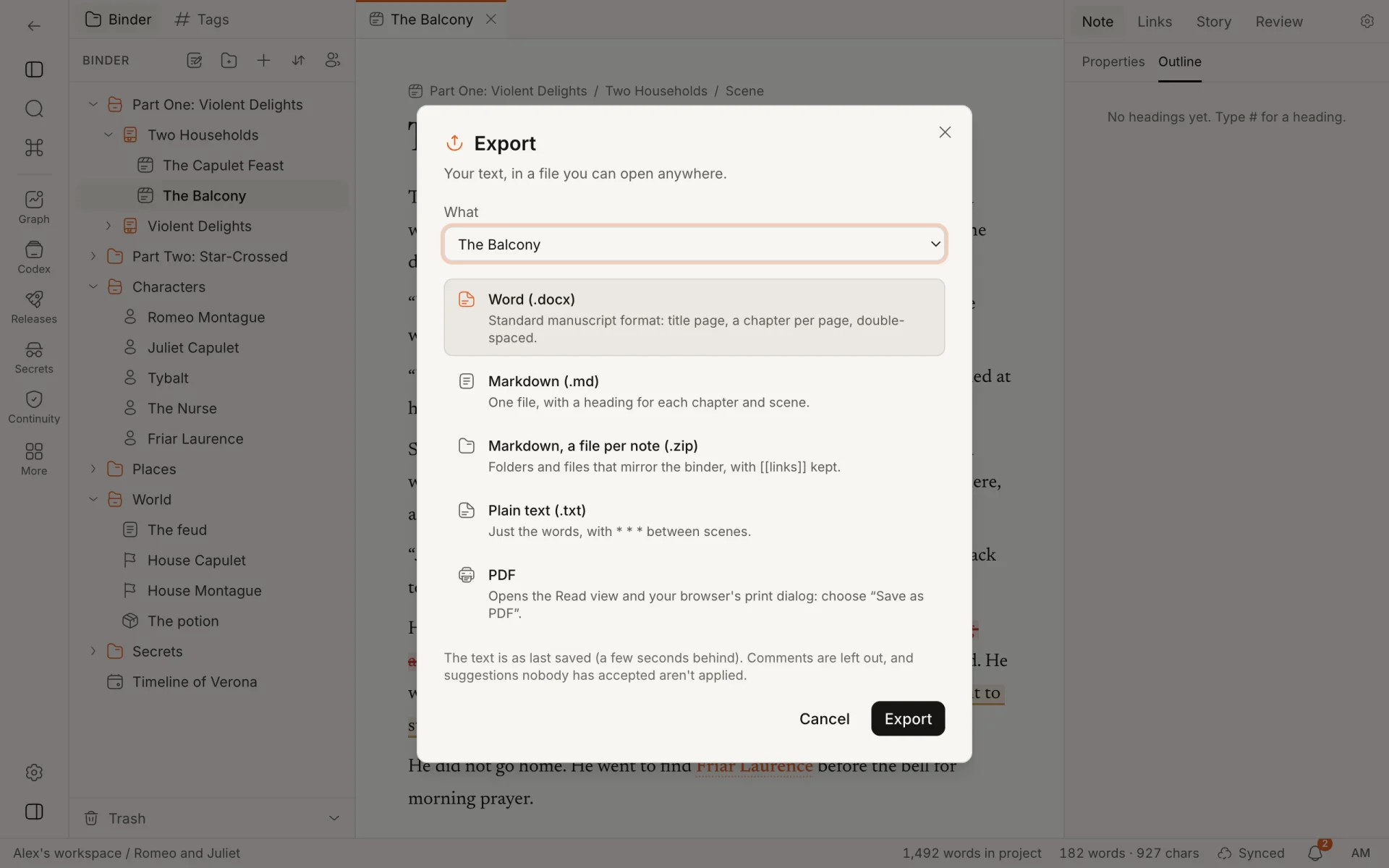
Opening the dialog
| From | What is selected |
|---|---|
| New… at the top of the binder, then Export project… | The whole project |
| Right-click any note, then Export… | That note and what is inside it |
| Command palette: "Export… (Markdown, Word, plain text, PDF)" | The note you have selected or open |
What at the top of the dialog can be changed to The whole project, to any folder or chapter, or to any note that has notes inside it.
Formats
| Format | What you get |
|---|---|
| Word (.docx) | Standard manuscript format: a title page, a chapter per page, double-spaced. Selected to begin with. |
| Markdown (.md) | One file, with a heading for each chapter and scene. |
| Markdown, a file per note (.zip) | Folders and files that mirror the binder, with [[links]] kept. This is the closest thing to a copy of the whole project. |
| Plain text (.txt) | Just the words, with * * * between scenes. |
| Opens the Read view and your browser's print dialog. See Printing and PDF. |
Click Export and the file is saved by your browser. It is named after what you exported, in lowercase with hyphens: the-long-night.docx.
What is included
- Text notes only: folders, chapters, scenes, notes, characters, locations, world entries and research notes. Canvases, timelines and dialogue trees are not text and are left out.
- Only what you can read yourself.
- Nothing from the trash.
- The text as last saved, which can be a few seconds behind what is on screen.
- Comments are left out.
- Suggestions nobody has accepted are not applied. Text someone proposed adding is left out, and text they proposed deleting is kept.
Which notes go into a single file (Word, one Markdown file, plain text):
- The whole project: the manuscript, meaning folders, chapters and scenes. Characters, research and other notes are left out. If no chapter or scene has any text, every text note is exported instead.
- A folder or a note: every text note under it, whatever its kind.
Notes with no text are skipped, and so are folders that end up holding nothing. If nothing is left, the dialog says "There's nothing written here to export yet."
Markdown, a file per note always takes every text note, empty ones included.
How the text is written
| In the note | Word | Markdown | Plain text |
|---|---|---|---|
| Link to a note | Its words | [[Title]], with #Heading and |display text when it has them | Its words |
| Embedded note | The note's title, in italics | ![[Title]] | The note's title |
| Web link | A hyperlink | [words](address) | The words |
| Image | Its description in square brackets |  | Its description in square brackets |
| Citation | Its in-text form, such as "(Okafor 2019, 44)" | The same | The same |
| Table | A table | A table | Cells separated by tabs |
| Task list | ☐ and ☑ | - [ ] and - [x] | [ ] and [x] |
| Callout | An indented paragraph | > [!note] | Its words |
| Highlight, underline | Kept | ==…==, <u>…</u> | Dropped |
| Rule in the text | A centred # | --- | * * * |
An embedded note is not copied into the file; only its title is written. Images are never put inside a file. Markdown keeps the address of an image that was added by web address. An image uploaded to Plotra has no address outside Plotra, so it is left out of Markdown.
When the text has citations, a reference list in the project's citation style is added at the end of a Word, single Markdown or plain-text file.
In Word, a screenplay keeps its columns: character names, dialogue, parentheticals and transitions sit where a screenplay puts them. Stage plays, comic scripts and audio scripts have no column layout in Word. "SFX:" and "MUSIC:" labels are written out. Writer's notes in a script are never exported.
Word (.docx)
The file follows standard manuscript format, ready to send to an agent or an editor.
- US Letter, one-inch margins, 12-point Times New Roman, double-spaced, each paragraph indented half an inch.
- Title page: your name at the top left with "about N words" at the top right (rounded to the nearest hundred), your email address under your name, then the title a third of the way down and "by" your name.
- Running header from the second page, at the top right: your surname, the title in capitals and the page number.
- Folders and chapters are centred headings. The first two levels start a new page, a third of the way down. A chapter directly under its part shares the part's page. Deeper folders are left-aligned headings that do not start a page.
- Scenes inside a chapter or folder run on without their titles, with a centred
#between them. A scene at the top level of the project gets its title as a heading. - Other notes (a character sheet, a research note) go under their own titles.
- Headings inside a note become smaller headings, below the chapter headings.
When more than half of the exported text is written in a script format, the file is set as a script instead: 12-point Courier New, single-spaced, an inch and a half on the left, the title in capitals, and only a page number in the header.
The name and email address are those of the person exporting, not the project's owner. The title is the name of what you exported.
Markdown (.md)
One file. It opens with front matter holding title and author (your name). Each note sits under a heading as deep as it is in the binder, so with a manuscript folder selected # is a chapter and ## is a scene. Headings inside a note are moved down to sit under the note's own heading. Headings stop at level six.
This is the layout Split at headings reads back in.
Markdown, a file per note (.zip)
A zip holding one top folder named after the project (or the folder you exported). Inside:
- Each note is a
.mdfile named after its title. - A note that holds other notes becomes a folder. If it has text of its own, that text is in a file of the same name inside the folder.
- Each file starts with front matter:
title,kind,order(its place among its siblings) andtags. - Characters a file system can't hold (
\ / : * ? " < > |) are replaced by spaces, and names are cut at 80 characters. Two notes with the same name in one folder become "Name" and "Name (2)".
Because files are named after titles, [[links]] still work when you open the folder in Obsidian or another Markdown tool.
Plain text (.txt)
The title in capitals and "by" your name, then the text. Top-level headings are in capitals. Scenes are separated by * * *. Lists keep their markers (-, 1.).
Under a spoiler horizon
If a spoiler horizon is on when you open the dialog, it says "As of (release): only what's revealed by then is exported." To export everything, switch the horizon off first.
- Notes the audience does not know by that release are left out. A folder or chapter kept only for what is inside it appears as a heading, without its own text or tags.
- Passages tagged for a later release are left out.
- A link to a note that is left out keeps its display text if you gave it one; otherwise it disappears from the sentence.
Passages marked Never are not in file exports
A passage tagged Never is left out of Word, Markdown and plain-text exports whether or not a horizon is on. So is a passage tagged with a release that has since been deleted. To get everything in a file, remove those block tags first. The PDF route is different: without a horizon, the Read view prints every passage.
Printing and PDF
Plotra makes PDFs through your browser's print dialog. Choose PDF in the export dialog and click Open print preview: the Read view opens on what you selected, and the print dialog opens as soon as the pages are laid out. Choose "Save as PDF" as the printer.
- In the Read view, pick Manuscript, Book or a script layout, then Print / PDF to print again in that layout.
- The paper size is US Letter.
- The Read view holds up to 400 notes. A longer project is printed a folder at a time.
- If the pages are not ready within 20 seconds, the print dialog does not open by itself. Click Print / PDF in the Read view.
The Read view needs no module. Anyone who can read the project can print it.
Out and back in
Exporting and importing again is not a backup of everything. This is what a round trip through Markdown, a file per note keeps:
| Kept | Lost |
|---|---|
| The text and its formatting | Each note's kind: imported notes become notes or scenes, whichever you choose, and folders |
| The folder structure and the order of notes | Properties, synopsis, status, label and aliases |
| Titles and tags | Canon status, reveal tags and block tags |
| Links between notes, and embeds | Comments, suggestions and version history |
| Web links, tables, lists, callouts | Canvases, timelines and dialogue trees |
| Uploaded images and attached files | |
| Citations: they come back as plain text |
Choose One note per file and Keep single line breaks when importing such a zip (unzip it and choose the folder; both are chosen for you).
A single Markdown file comes back as chapters and scenes with Split at headings. Word and plain text come back without links, and their scenes come back as separate notes only with Start a new scene at every scene break on. Plain text keeps its chapters only when their titles read like "Chapter 1" or "Prologue".
Other tools have their own exports, described on their pages: Fountain for scripts, Interactive narrative for Ink, Yarn and Twine, Localization for translators' files, and Publishing for EPUB, the series bible and the public wiki.
Who can import and export
| Action | Who |
|---|---|
| Export, and print to PDF | Anyone signed in who can read the project: viewers, commenters, editors and up. You get only the notes you can read. |
| Import | Anyone who can edit the folder the notes go into, or the project when they go to the top of the binder. |
For people who can't edit, Import… is missing from the New… menu and the command palette, and greyed out in the right-click menu.
Someone reading through a read-only link has no account and can't export.
Both dialogs need a connection: files are read and built on the server.
Export is never blocked by a plan limit. A workspace that is over its limits can still export everything. See Quotas.
How is this guide?
Writing goals
Keep the draft moving. Words per day, streaks, a daily and a session goal, and targets for the project and for single chapters.
The AI agent
An assistant that works inside your story and stays under your control. Turning it on, whose model it runs on, the three modes, every tool it has, undoing what it did, and exactly what is sent where.