 Plotra Docs
Releases, reveals and the spoiler horizon
Record what your story ships in and when the audience learns each thing, then see the whole project as readers know it at a given book, episode or session.
These tools answer one question: what has the audience been told so far? You list the releases your story ships in, mark when each note or passage is revealed, and then set the spoiler horizon to see the project as readers know it at that point.
All three need the Releases & reveals module. A tabletop RPG project starts with it on. For every other type, turn it on in the Modules tab of Project settings.
Releases
A release is whatever your story ships in: a book, a chapter of a web serial, an episode, a season, an issue, a game patch, a campaign session. Releases have an order, and the order is what "before" and "after" mean everywhere on this page.
The Release roadmap view
Open it from the ribbon (Releases) or with "Open release roadmap" in the command palette. It needs the Releases & reveals module.
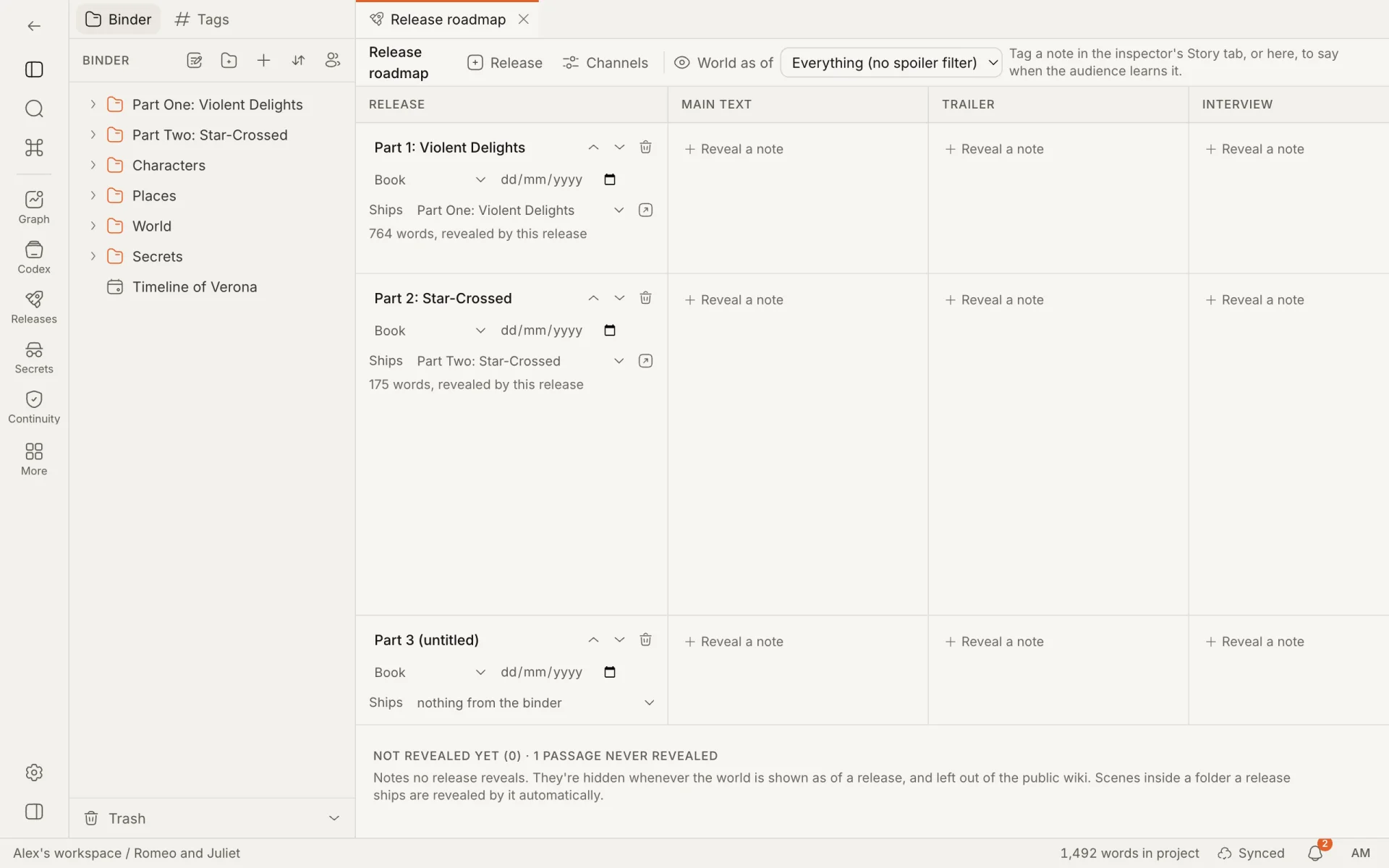
The toolbar:
| Control | What it does |
|---|---|
| Release | Adds a release at the end of the list. |
| Channels | Opens Project settings, where the reveal channels are edited in the Reveals & languages tab. |
| World as of | Sets the spoiler horizon. |
Below it is a table: one row for each release, one column for each channel. A cell lists what the audience learns in that release, through that channel.
A release
A new release is named after its kind and its number ("Book 3", "Session 4"). Its kind starts as the one that suits the project type: a book for a novel, a session for a campaign, an episode for a screenplay. See Project types.
Everything about a release is edited in its row:
| Part | What it does |
|---|---|
| Title | Click to rename. Up to 80 characters. |
| Earlier / Later | The arrows move the release up or down the order. |
| Delete release | Removes it, after a confirmation. |
| Kind | Book, Chapter, Episode, Season, Issue, Volume, Patch, Session, Marketing beat or Release. A label only: it changes nothing else. |
| Date | The planned or actual date. Optional. |
| Ships | A folder or chapter from the binder: "this folder is Book 2". Everything inside it is then revealed by this release, with no further tagging. "nothing from the binder" is the default. |
When a release ships a folder, the row shows the folder's word count and a button that opens it. If two releases ship the same folder, the earlier one counts.
A Released badge appears once the release has been cut in the Review & editorial module, which snapshots every note for the changelog. See Review and editorial.
A project can hold 500 releases.
Deleting a release. Notes tagged as revealed by it go back to not revealed. Passages tagged with it keep the tag, shown as "A removed release": they stay hidden under every horizon and are left out of exports until you retag them.
Reveals
A reveal says when the audience learns something, and optionally where.
Revealing a note
In the Story tab of the inspector, under Revealed to the audience:
| Control | What it does |
|---|---|
| The first list | The release that reveals the note: "In Book 2". The empty choice reads "Not revealed yet", or "With its folder (Book 2)" when a folder above the note already reveals it. |
| The second list | The channel: where the audience learns it. Shown once the note is revealed. "Channel not specified" is the default. |
| Truth / Belief | The knowledge layer. See Who knows what. |
Until the project has a release, this section offers a link to the roadmap instead.
The roadmap sets the same thing from the other side:
- Reveal a note in a cell picks a note and tags it with that release and channel.
- The cross beside a note in a cell (Remove from this release) clears its reveal.
- The Not revealed yet list at the bottom has a Reveal in… menu on each note. It lists the first 60 notes and counts the rest. Folders, chapters, canvases and timelines are not listed.
Channels
A channel is where a reveal happens: the chapter text, a trailer, an interview, a handout to your players. A project starts with Main text, Trailer, Interview, Social post and Supplementary story. Change them in Project settings, the Reveals & languages tab: up to 20, each up to 40 characters. See Project settings.
Channels are labels for planning. They don't change what the spoiler horizon hides. A reveal with no channel, or with a channel that has since been removed, appears in a No channel column at the end of the roadmap.
How Plotra decides when a note is revealed
Nearest rule first:
- The note's own reveal tag.
- Otherwise, the closest note above it in the binder that has a reveal tag or that a release ships. A scene inside the "Book 2" folder is revealed by Book 2.
- Otherwise, it is not revealed. The audience hasn't been told.
A block inside a revealed note is revealed with it, unless the block has its own tag: a later release, or "never".
In the campaign sample, each session is a release that ships that session's folder, so its scenes need no tags. The reeve's character page is revealed in Session 1, the paragraph about his second ledger is tagged for Session 3, and the game master's notes on how he behaves when cornered are tagged Never.
Block tags
A block tag gives one block, or several, settings of its own. It is how you mark a secret inside a page the audience otherwise knows.
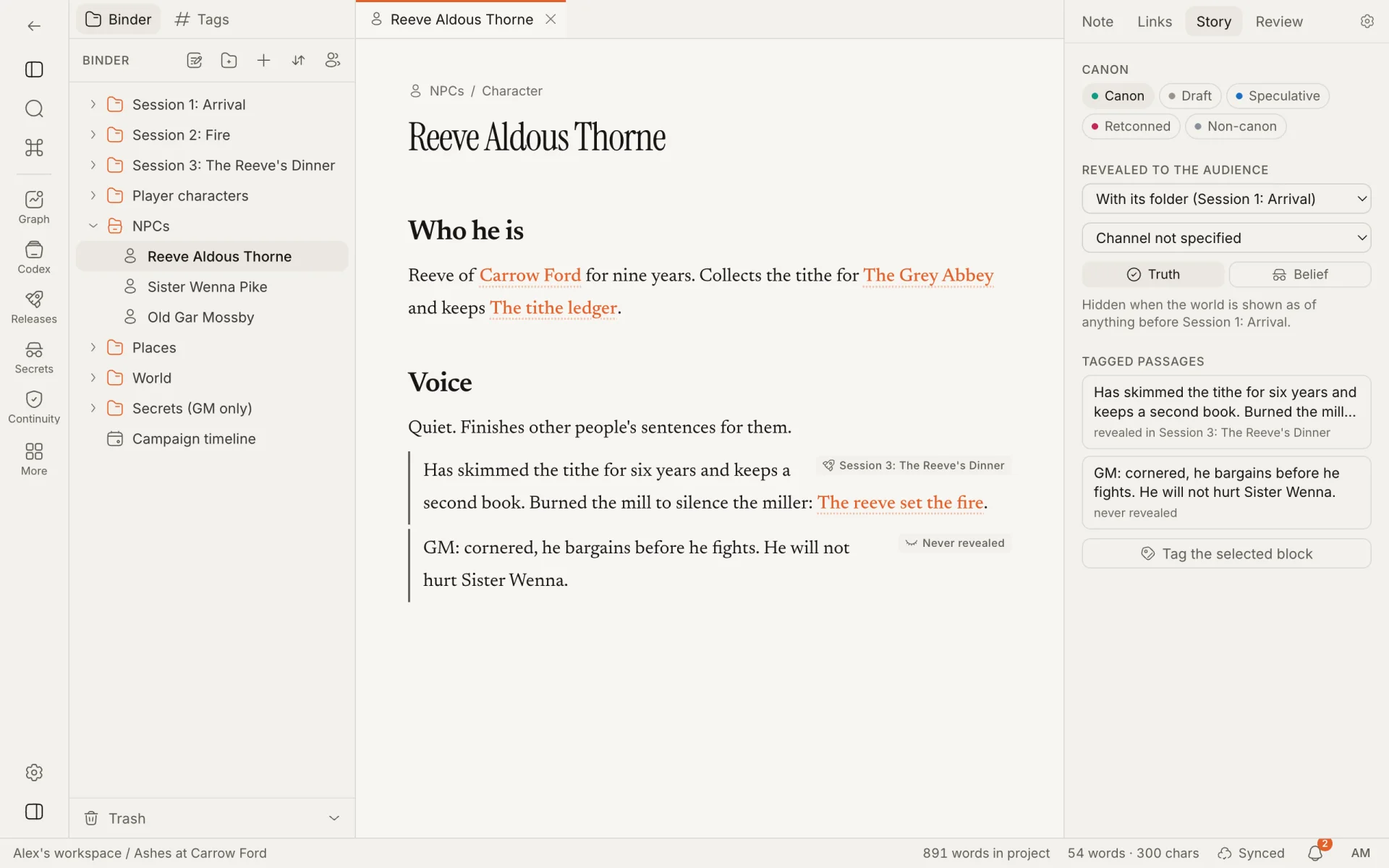
To tag:
- Put the cursor in a block, or select several.
- Press
⌘⌥T, run "Tag block (canon, reveal, fact-check)…" from the command palette, or use Tag the selected block in the Story tab. - Set the fields and press Apply.
The dialog shows only the fields of the modules that are on. With none of the three on, it says so and offers nothing to set.
| Field | Module | Choices |
|---|---|---|
| Canon | World bible | "Same as the note", or any canon status. |
| Revealed | Releases & reveals | "With the note", "Never (the audience isn't told)", or a release. |
| Where | Releases & reveals | The channel. Shown only when a release is chosen. |
| Layer | Releases & reveals | Truth, or Belief: what people are led to believe. |
| Fact-check | Research & sources | "Not a claim", Unverified, Verified or Disputed, and then a Source. See Research and sources. |
Anything left at its first choice follows the note. Clear tags removes every tag from the selected blocks. With several blocks selected, the dialog opens with the first block's tags and Apply writes them to all of them.
A tagged block has a coloured line down its left side and small labels at its right: the canon status, the release and channel or "Never revealed", "Belief", and the fact-check status. Click a label to open the dialog for that block.
The Story tab lists the note's tagged blocks under Tagged passages, each with the start of its text and its tags. Click one to edit it; the note has to be open.
Things to know:
- Tags belong to the block. They travel with it when it is moved, copied or restored from a version.
- Tagging needs edit access to the note. Tags are applied directly, even in suggesting mode.
- The roadmap, the Story tab and Secrets & setups read tags from the saved copy of the note, which is updated a few seconds after you stop typing. A new tag takes that long to appear there.
- Up to 500 tagged blocks per note are indexed.
The spoiler horizon
The spoiler horizon shows the project as the audience knows it once a given release is out. Everything revealed by that release or an earlier one is known; everything else is not.
Setting it
Choose a release under World as of in the Release roadmap toolbar. "Everything (no spoiler filter)" turns it off.
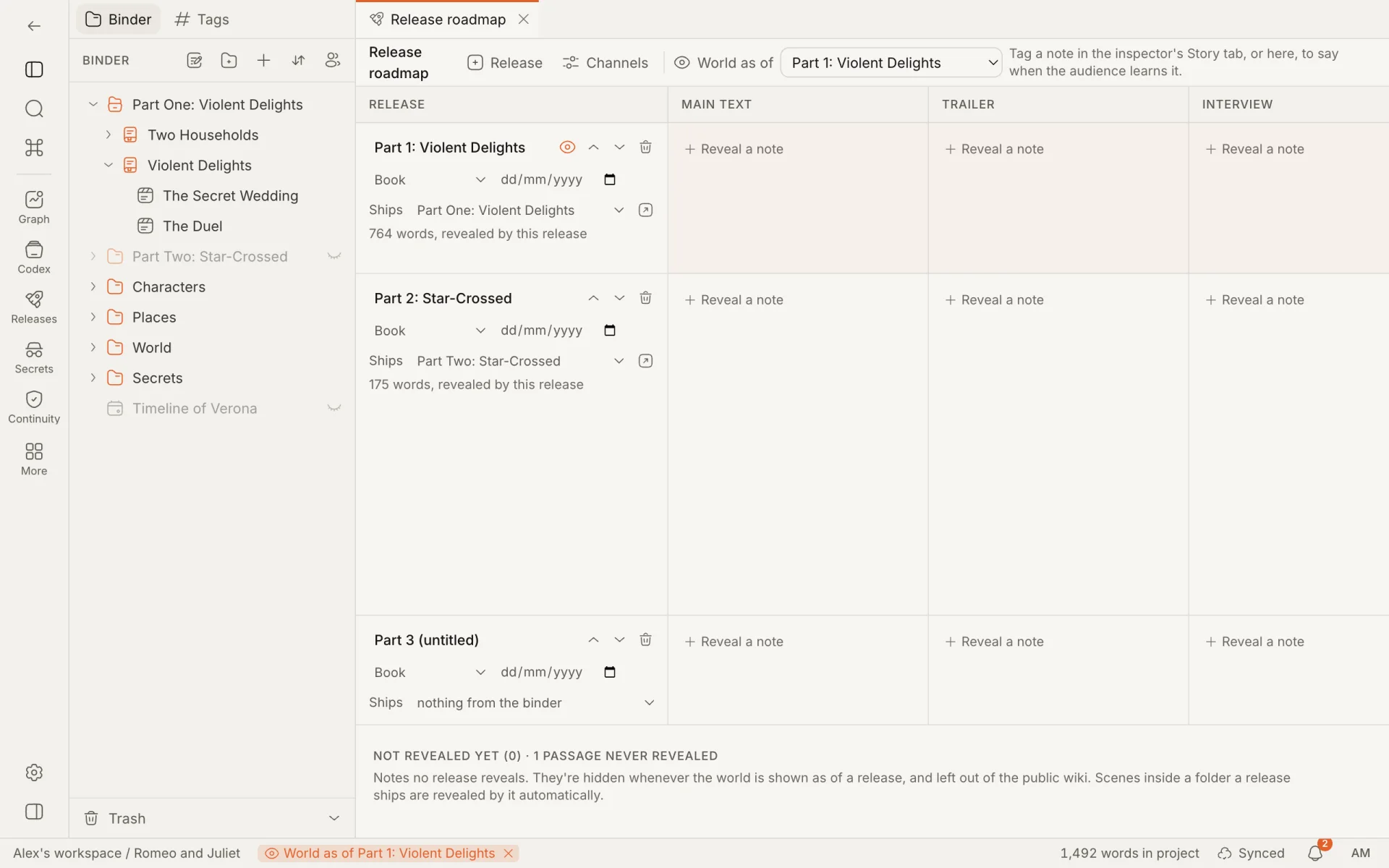
While a horizon is on:
- the status bar shows World as of and the release's title. Click the name to open the roadmap; click the cross to show the whole world again;
- the release's row in the roadmap is tinted and marked with an eye.
The horizon is remembered in your browser, for each project. Your co-writers set their own, and so does each of your devices. If the release is deleted, the horizon turns off.
What it hides
| Where | What happens |
|---|---|
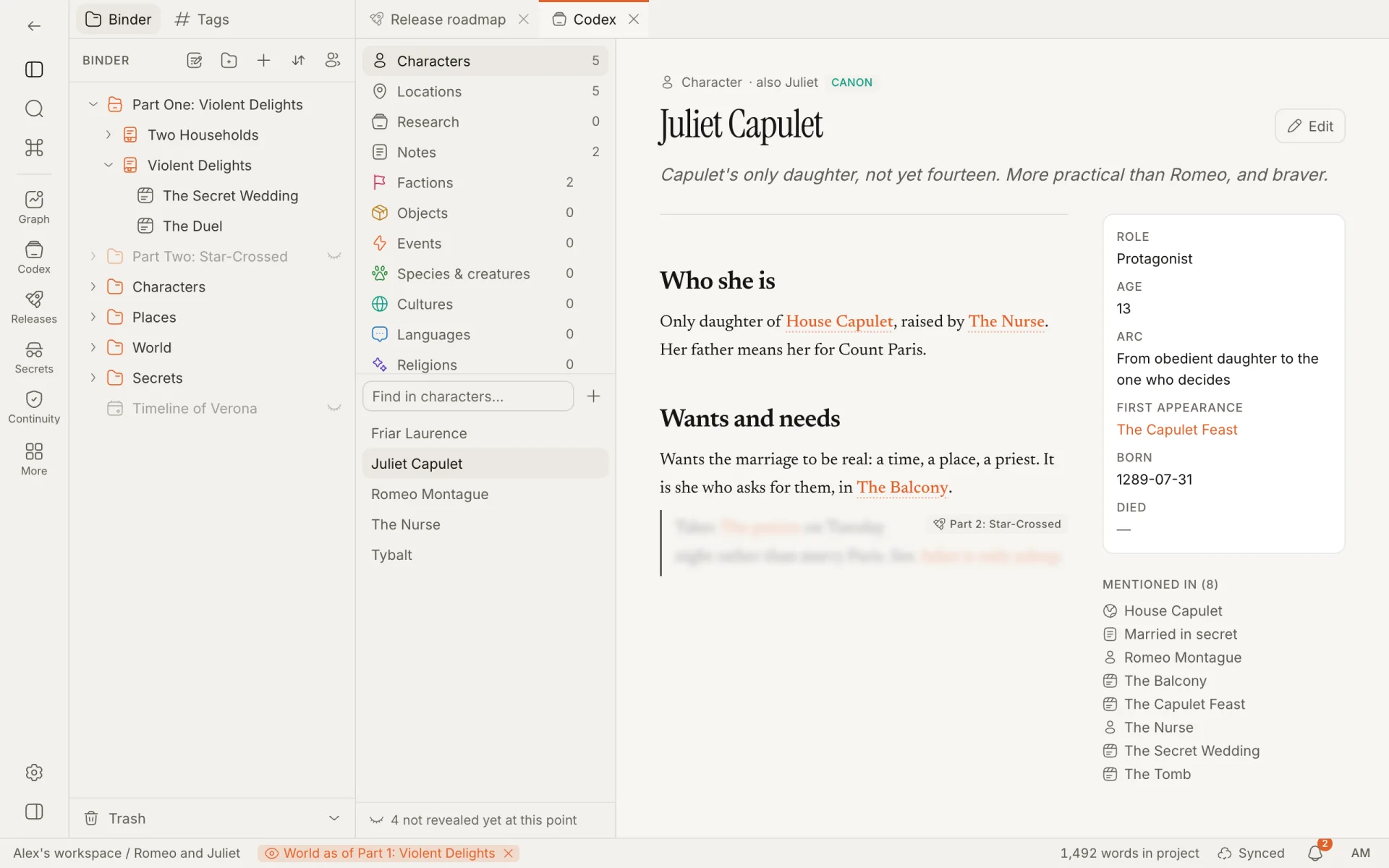
| Binder | Notes the audience doesn't know are dimmed and marked with a closed eye. A folder stays lit if anything inside it is known. Dimmed notes still open. |
| Editor | A block tagged for a later release, or Never, is blurred. Hover over it or put the cursor in it to read and edit it. |
| Outline | Lists only known notes and the folders that hold them. |
| Codex, Graph, Timeline | Leave out notes the audience doesn't know. |
| Quest designer | Leaves out quests the audience doesn't know. |
| Read | Leaves out unknown notes, and blocks tagged for later or never. A folder shown only for what is inside it keeps its title and loses its own text. |
| Secrets & setups | The middle column of Knowledge layers becomes "Told by this point". |
| Export | The export dialog says "As of" the release and exports only what is revealed by then, in every format. |
| Publish | The Publish view starts from the same release, and has its own World as of choice. See Publishing. |
| AI agent | Answers "as of" a release when you ask it to. See The AI agent. |
What it does not hide
- The text of a dimmed note. Open a note the audience doesn't know and its text is there, unblurred. Only blocks with their own later or "never" tag are veiled in the editor.
- The Corkboard, Plot grid, Manuscript, Relationships and Canvas views. They show everything.
- Search, the quick switcher, the link picker and the Links tab. They find and list every note.
- The Release roadmap and the Continuity view. They always work on the whole project.
- Anything from another person. See the warning below.
Passages marked Never
A block tagged Never is hidden under every horizon. It is also left out of every file export and of the published wiki when no horizon is on, as is a block tagged with a release that has been deleted. The Read view with no horizon shows them, and so does a PDF, which is printed from the Read view: set a horizon before printing a copy for someone else.
What it is for
- Writing a recap or a blurb for Book 2 without a detail from Book 4 slipping in.
- Writing the next book with a clear view of what the reader already knows.
- Running a tabletop campaign: set the horizon to the last session and you see what your players know. Build the wiki in the Publish view at that horizon and hand it to them: that is the player-safe version.
- A public wiki that only contains what has been revealed.
The horizon is a way of looking, not a lock
The spoiler horizon filters what you see while you work, and what goes into an export or a published wiki. It is not a permission. Someone you share the project with as a viewer can read all of it, and so can anyone with the project's read-only link, passages marked Never included. To keep unrevealed material from a person, give them the wiki or an export made at the horizon, or keep the secrets in a separate project.
How is this guide?
Canon and the world bible
Keep a long story consistent. What the canon tools are and which module each belongs to, then the world bible, canon status and retcons.
Secrets and continuity checks
Track which character knows which secret and where they learn it, pair every setup with its payoff, and let plain rules find the contradictions in your story.