 Plotra Docs
Your account and workspaces
Signing in, your own settings, the account menu, and workspaces: creating and switching them, their members, roles and settings.
Your account is you: a name, an email address and a way to sign in. A workspace is where projects live and where the people you write with are gathered. One account can belong to any number of workspaces, and can also be let into single projects in workspaces it doesn't belong to.
This page covers the account and the workspace. Sharing one project, comments and co-writing are on Working together; what each role may do is on Roles and permissions.
Your account
Creating one
On the sign-up page, fill in:
| Field | Notes |
|---|---|
| Your name | Up to 80 characters. "This is your byline": it is the name shown on your cursor, your comments, your versions and in the activity feed. |
| The address invitations and shared projects must be sent to. | |
| Password | At least 8 characters. The eye button shows what you typed. |
Then click Start writing. Where the server has Google sign-in set up, Continue with Google is offered above the form, and creates the account from your Google name, address and picture.
A new account goes straight to naming its first workspace; see Your first workspace.
Signing in
Sign in with your email and password, or with Continue with Google if that is how you signed up. If you opened a link while signed out (an invitation, a shared project, a note), you are taken back to it after signing in.
| Fact | Detail |
|---|---|
| How long you stay signed in | Seven days, renewed while you keep using Plotra in that browser. |
| Signing in on several devices | Allowed. Each browser has its own session. |
| Signing out | Sign out in the account menu. It signs out the browser you are in, not your other devices. |
| Too many attempts | Sign-in is limited to 5 attempts a minute and sign-up to 5 an hour from one address. |
What you can't change yet
The account has no profile page. These things do not exist in the interface:
- changing your name, your email address or your picture
- changing your password, and "forgot password": there is no password reset, so keep the password somewhere safe
- sign-in links by email
- adding Google sign-in to an account made with a password, or a password to one made with Google
- a list of your sessions, or signing out other devices
- deleting your account
Your picture is the one from Google if you signed up with it. Otherwise Plotra shows your initials.
Plotra sends no email to verify your address. An account that signs in with Google counts as verified; one made with a password does not. The only place this matters is sharing a project: a verified account gets access at once, and anyone else gets it by opening the emailed link.
The account menu
Your avatar opens the account menu. It is at the right of the top bar on the workspace's home page, the Shared with you page and your settings, and at the right end of the status bar inside a project.
| Item | What it does |
|---|---|
| Your name and email | Shown at the top, so you can tell which account you are in. |
| Theme | Light, Dark or System, which follows your device. Kept in this browser, not on your account. |
| Your settings | Opens your settings. |
| Keyboard shortcuts | Opens the shortcuts sheet. Only inside a project. See Keyboard shortcuts. |
| Getting started | Brings back the getting-started checklist. Only inside a project, and only after you have closed the checklist. |
| Sponsor Plotra | Opens the project's GitHub Sponsors page in a new tab. Sponsoring changes nothing in the app. |
| Sign out | Signs this browser out and returns to the sign-in page. |
Your settings
Your settings are yours alone, and apply in every workspace you belong to. The page has a Back link at the top and these sections:
| Section | What it holds |
|---|---|
| Email notifications | Whether notifications are also emailed: A daily digest (the default), Each one or Off. See Notifications. |
| Your model | The AI provider, key and models the agent uses when you run it. See The AI agent. |
| What this means | A reminder that AI is opt-in for each workspace and each project. |
Other things Plotra remembers for your account are set where you use them, not on this page:
| Preference | Where you set it |
|---|---|
| Daily and session word goals | The Stats view. See Writing goals. |
| The ribbon, the inspector's tabs, the look of the page you write on | Customize. See The vault and the binder. |
| The getting-started checklist | The checklist itself, and the account menu. |
Workspaces
A workspace holds projects and people. Everyone in it can open and edit every project in it; the plan and its limits belong to the workspace, not to a person. A workspace has a name and an address of the form /w/your-workspace.
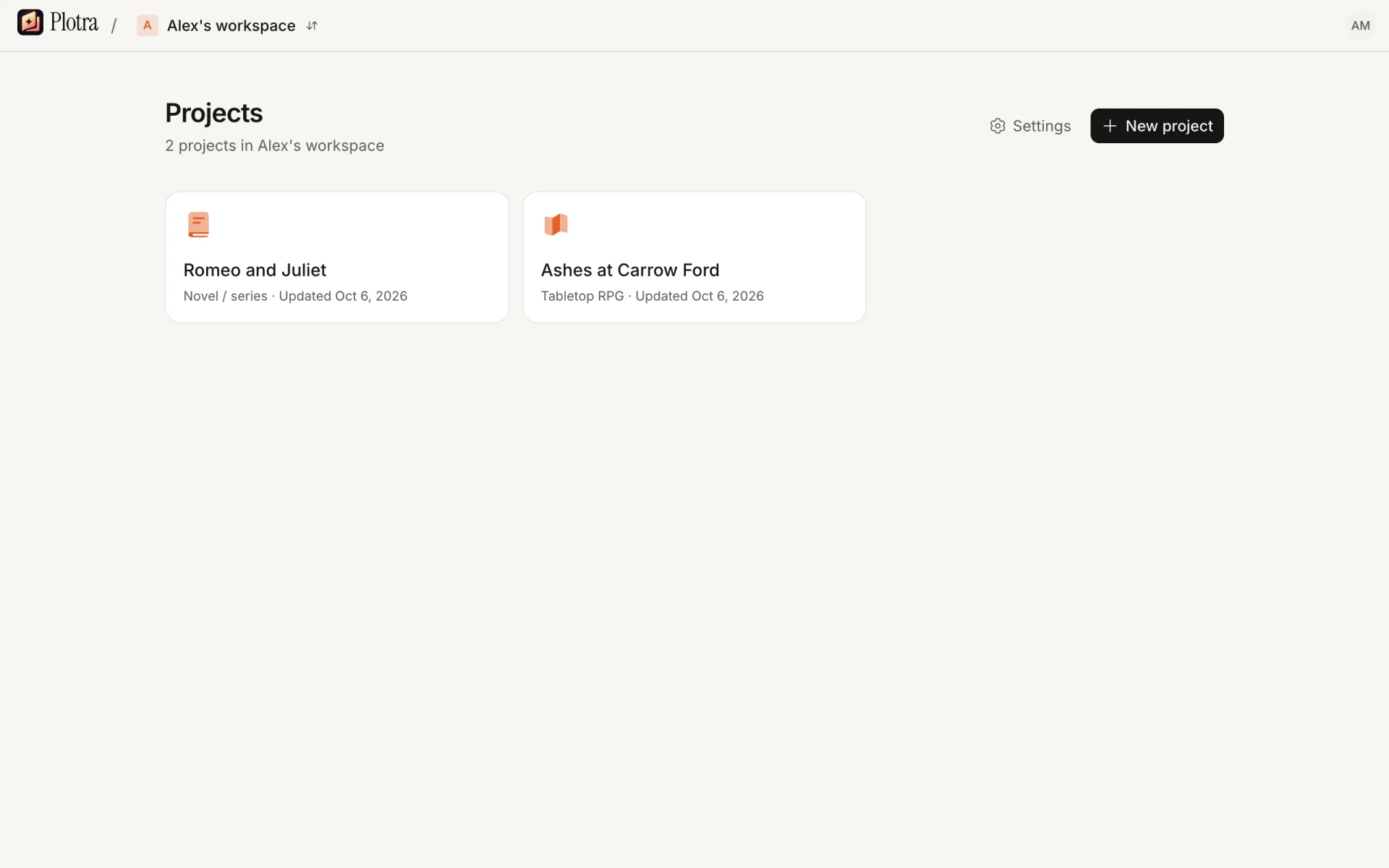
Use more than one when groups of people shouldn't see each other's projects: one for your own writing, one for a writers' room. To let one person into one project, you don't need another workspace; share the project.
Your first workspace
A new account is asked "First, name your workspace." The field already holds a suggestion, "Your first name's workspace", so pressing ↵ accepts it. The address is made from the name. If that address is taken, a few letters are added to the end.
Someone who signs up to open a project that was shared with them is not asked: with no workspace, Plotra opens on Shared with you, and Start your own project there leads to the same question when they want one.
Creating another
- On the workspace's home page, click the workspace's name in the top bar.
- Choose New workspace.
- Fill in Workspace name (up to 80 characters) and URL. The URL is filled in from the name as you type; edit it if you want another. It can hold lowercase letters, digits and hyphens, up to 48 characters.
- Click Create workspace.
You are the owner of the new workspace, and it opens empty. If the URL is already used by another workspace, the form says so and you pick a different one.
Each workspace has its own plan. On the hosted version a new workspace starts on Free; see Plans and billing.
Switching
Click the workspace's name in the top bar of the home page and choose another from the Workspaces list. A tick marks the one you are in. Plotra remembers the workspace you switched to and opens it next time.
From inside a project, go back to the workspace first: the "Back to Workspace" command, or the button at the top of the ribbon.
Where Plotra opens
| Your situation | Opens on |
|---|---|
| You have a workspace with projects | The workspace you last switched to, or the first one |
| Your workspace has no projects yet | The questions that start a project |
| You have no workspace, but projects are shared with you | Shared with you |
| You have neither | Naming your first workspace |
The workspace's home page
| Part | What it does |
|---|---|
| The workspace's name | The switcher described above. |
| Projects | A card for each project, with its type and when it last changed. Every member sees every project. |
| Shared with you | Projects from other workspaces that were shared with you. Shown only when there are some. |
| Settings | The workspace's settings. |
| New project | Starts a project. Any member can. See Your first project. |
What you can't do yet
These do not exist in the interface:
- renaming a workspace or changing its address
- deleting a workspace
- leaving a workspace yourself: an owner or admin has to remove you
- deleting or archiving a project
Workspace settings
Open Settings on the workspace's home page. The page is for owners and admins. A member sees "Only owners and admins can change workspace settings." and nothing else.
It has up to three tabs.
| Tab | What it holds | Who |
|---|---|---|
| Members & invites | Inviting people, open invitations, the member list, roles | Owners and admins |
| AI | The switch that allows AI in the workspace | Owners and admins |
| Plan & billing | The plan, what the workspace uses, upgrading | Owners and admins see it; only an owner can change the plan. Not shown on a Plotra you host yourself. |
Members
The Members list shows everyone in the workspace, by name, with their email and role. You are marked "(you)".
| Role | In short |
|---|---|
| Member | Can open and edit every project, and create projects. Can't open these settings. |
| Admin | The same, plus manages projects (their settings and sharing), members and the AI switch. |
| Owner | The same as an admin, plus the plan and billing. Whoever creates the workspace is its owner. |
To change a role, pick another from the menu beside the person.
- An admin can make people members or admins.
- Only an owner can make someone an owner. A workspace can have several owners.
- An admin can't change or remove an owner.
- Nobody can change their own role. An owner who wants to step down asks another owner to do it.
To remove someone, click the button at the end of their row and confirm. "They lose access to every project in this workspace, including ones shared with them directly." You can't remove yourself.
What stays behind when someone is removed: everything they wrote. Their comments stay too, shown under the name "Former member".
Invitations
Invite people is at the top of the same tab: an email address, Member or Admin, and Send invite. Open invitations are listed beneath it with a Cancel button each, and expire after 48 hours. The whole flow, including what the invited person sees, is on Working together.
How many members a workspace can have depends on its plan: 3 on Free and 25 on Pro, counting the owner and invitations still open. A Plotra you host yourself has no limit.
AI
One switch, Allow AI in this workspace. It is off until an owner or admin turns it on, and while it is off no AI control is shown anywhere in the workspace's projects. Turning it on does not switch AI on in any project; each project has its own switch. See The AI agent.
Plan & billing
The plan belongs to the workspace, and everyone in it shares the same limits. The tab shows the current plan and how much of each limit is used: Projects, Storage, Members, and AI credits this month where the plan includes them. Owners also get the buttons to upgrade and to Manage billing; an admin sees "Only an owner of the workspace can change its plan."
Plans, prices, upgrading and cancelling are on Plans and billing, and the limits themselves on Limits.
Guests
Someone a project is shared with, who isn't a member of its workspace, is a guest there. A guest:
- sees only the projects shared with them, on Shared with you
- can't open the workspace's home page, its other projects or its settings
- can't be mentioned in comments
- can't create projects in that workspace
A guest can have a workspace of their own at the same time. The two don't affect each other.
How is this guide?
Project settings
Shape a project to your medium: its type, modules, status workflow, its own words, labels and kinds, and the ribbon you see it through.
Plans and billing
The Free and Pro plans on the hosted version, what an AI credit is, who can manage billing, and how to upgrade, cancel, get a refund or go back to Free.