 Plotra Docs
The AI agent
An assistant that works inside your story and stays under your control. Turning it on, whose model it runs on, the three modes, every tool it has, undoing what it did, and exactly what is sent where.
Plotra works without AI. The agent is off until someone turns it on, and with it off no AI control is shown anywhere.
When it is on, it works inside a project like a collaborator: it can answer questions about the story, draft and rewrite, and change the binder, properties, timeline and the rest. It does all of that as you: every step it takes goes through the same permission checks as your own clicks, so it can open and change only what you can.
Turning it on
Three things have to be true before you see any AI control. The first two are switches, and both are off by default.
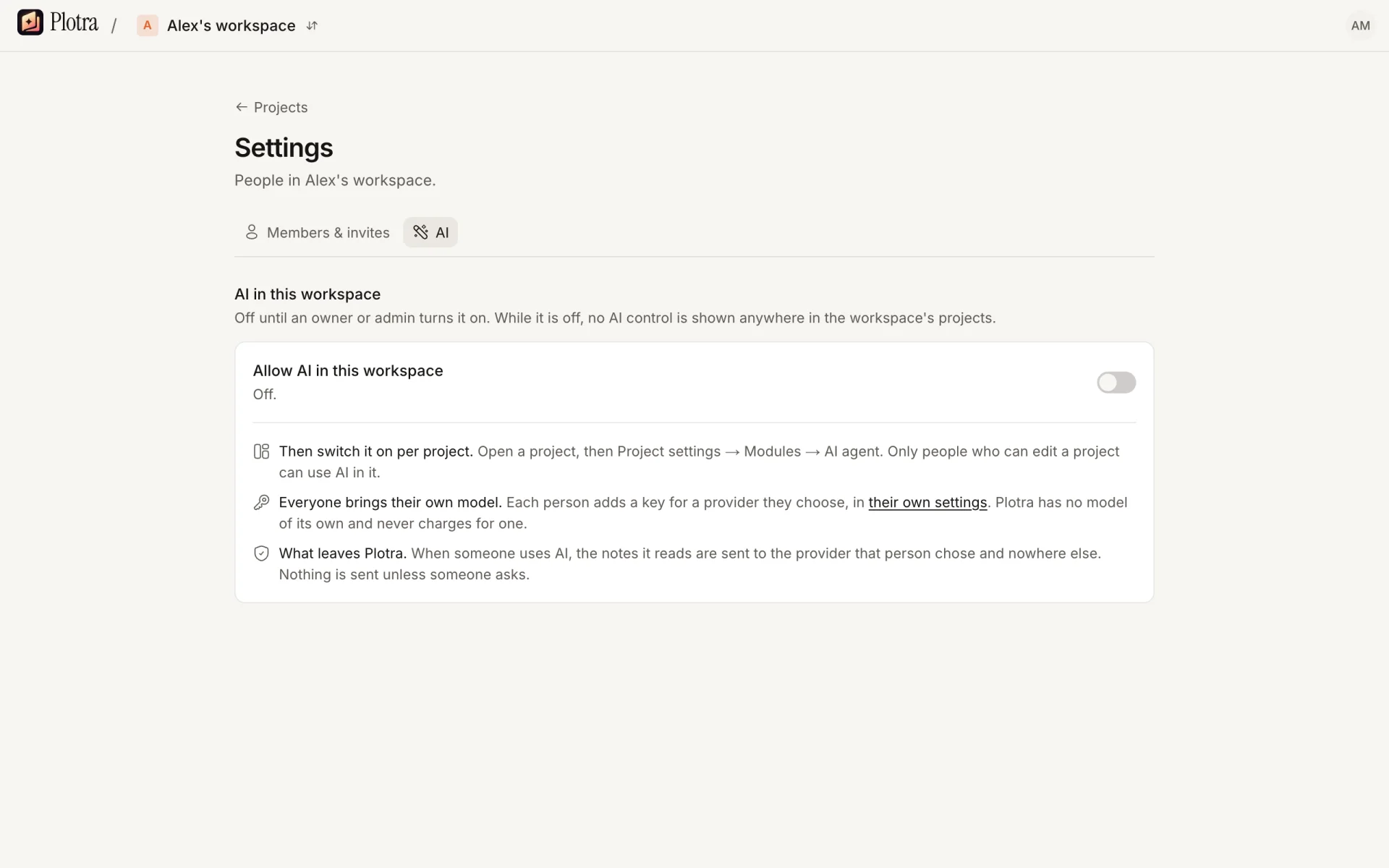
- The workspace switch. An owner or admin opens Workspace settings → AI and turns on the switch. While it is off, no AI control is shown in any of the workspace's projects.
- The project switch. In Project settings, under Modules, turn on AI agent. No project type starts with it, and it has no effect until the workspace switch is on.
- You can edit the project, and you have a model. Only people who can edit a project can use AI in it. Viewers and commenters never see it. A guest with the editor role can use it, on their own model.
With both switches on and no model, the AI tab shows Add your own model to use AI with a button to Open AI settings. Press I've added it when you are done and the chat appears.
Whose model it runs on
The agent needs a model. There are four ways to give it one.
| Who pays | Where the text goes | |
|---|---|---|
| Your own key | You, on your provider's bill | The provider you chose |
| A local model | Nobody | Your own machine |
| Hosted AI (Pro workspaces on the hosted version) | The workspace's monthly credits | The provider Plotra uses |
| The instance's key (self-hosted) | Whoever runs the server | The provider they chose |
When more than one is available, your own settings always win. Then comes hosted AI, if the workspace is on Pro and has credits left this month. On a self-hosted server with no plans, the instance's model is used by everyone who hasn't added their own.
Your own key
Open your account menu, choose Your settings, and find Your model.
| Field | What goes in it |
|---|---|
| Provider | Anthropic, OpenAI, OpenRouter, OpenAI-compatible endpoint, or Ollama (local model). |
| URL | Only for an OpenAI-compatible endpoint or Ollama: the base URL of the API, usually ending in /v1. Empty for Ollama means http://localhost:11434/v1. |
| API key | Required for Anthropic, OpenAI and OpenRouter. Optional for the other two. |
| Model for the agent | The model that runs the chat and long jobs. It has to support tool calling. |
| Model for inline actions | The model for Continue, Rewrite, Shorten, Expand and Change tone in the editor. A smaller, cheaper one is fine. Empty uses the agent's model. |
Test makes one tiny call on each model and tells you what the provider said. Save stores the settings. Remove deletes your key and models from Plotra; nothing changes at your provider.
The key is yours alone. It is encrypted before it is stored (AES-256-GCM, tied to your account, so a copy of the row doesn't decrypt on anyone else's), used only on the server for your own runs, and never shown again: the page only ever shows its last four characters. It is never shared with collaborators. A collaborator who runs the agent uses their own key.
On the hosted version, the URL of an OpenAI-compatible endpoint has to lead to the public internet or to your own machine (see below). A URL with a username or password in it is refused: the key goes in the key field.
A local model
Choose Ollama (local model), or OpenAI-compatible endpoint with a local address such as LM Studio's or llama.cpp's. The agent needs a model that supports tool calling; a model without it can still do the inline actions.
- On a self-hosted Plotra the server calls the model. Whoever runs the server sets
AI_ALLOW_PRIVATE_URLS=trueso that addresses on the local network are allowed. - On the hosted version the server can't reach your computer, so your browser calls the model directly. The settings page says so as soon as you type a local address. What the model is sent and what it writes go between your browser and that model, and to no provider. A key for the endpoint, if it needs one, is kept in that browser's local storage and never sent to Plotra, so you enter it again in each browser you use.
When the browser calls the model, the loop that asks the model, runs the tools it asks for and asks again runs in your browser tab. Everything else stays on the server: it builds the instructions, runs each of the agent's tools as you, decides what the mode allows and what has to wait for your yes, and stores the conversation. Nothing the browser or the model sends can stand in for your answer to a question the agent asked.
Two things have to be set on the model server, or it won't work:
- Allow the app's address. A model server refuses requests from web pages it doesn't know. With Ollama, set
OLLAMA_ORIGINSto the app's address, for exampleOLLAMA_ORIGINS=https://app.plotra.com ollama serve. Another server needs to allow requests from that address (CORS). - Give it a larger context. Ollama's default context is 4,096 tokens and it cuts off what doesn't fit without saying so. The agent's instructions and tools alone are about 7,000 tokens, so on the default the model behaves as if it had no tools. Set
OLLAMA_CONTEXT_LENGTH=16384or more; the settings page suggests 32768. Test warns you when Ollama is running the model with less than 16,000. This applies to a self-hosted Plotra calling Ollama as well.
Limits of a browser-called model:
- Long jobs are not available: each step is run by the server, which can't reach your model. Start is greyed out. Ask for the work in the chat instead, a few notes at a time.
- The model has to be at
localhostor behind https. A page served over https may not call plain http on your network. - Closing the tab in the middle of a run loses the answer being written. What the run had already changed stays changed; the next time you send a message in that chat, a line appears saying the run was interrupted, with its changes listed and Undo run under it.
- After switching to or from a local model, reload any project you have open.
Hosted AI
On the hosted version, a workspace on Pro has 1,500 credits a month and nobody in it needs a key. One credit is 1,000 input tokens; output tokens count five times. If you have your own key or a local model, your runs use it and spend no credits. When the credits run out, people without a model of their own see a message saying when the credits come back. The details are in Plans and billing.
The instance's key
Whoever runs a self-hosted server can give everyone on it a model with the AI_PROVIDER, AI_MODEL_AGENT, AI_MODEL_FAST, AI_API_KEY and AI_BASE_URL settings. Your settings then shows "This server provides a model for everyone" with its name. Your own settings, if you save any, are used instead.
Saving a personal key needs AI_KEY_SECRET to be set on the server (at least 16 characters); without it the page says the server isn't set up for personal AI keys. See Self-hosting.
Where to find it
- The AI tab in the right sidebar, or AI as a view in any pane (the ribbon, or the command Open AI chat): a chat, with every step the agent takes listed as it happens.
- In the editor: select some text, or put the caret on an empty line, and press
⌘J. The same menu opens from the AI button in the floating toolbar, and Continue writing is in the/menu. - The command palette (
⌘P): five commands in the AI group.
| Command | What it does |
|---|---|
| Ask AI… | Opens the AI tab with the caret in the message box. |
| AI: Draft this scene or chapter | Puts "Draft @note from its synopsis and what comes before it." in the box, pointing at the open note. |
| AI: Check this chapter | Puts "Read @note like an editor: comment on what doesn't work, and run the continuity checks on it." in the box. |
| AI: Carry a change through the project… | Puts "Change this everywhere it appears, and tell me which notes you changed:" in the box for you to finish. |
| AI: Build the project from a premise… | Puts a request to plan the project as a long job in the box, for you to add the premise. |
Each of the last four only fills the box. Nothing is sent until you press Enter.
The chat
The box at the bottom takes your message. Enter sends it and Shift+Enter starts a new line. While the agent is working, the send button becomes Stop.
@points at a note. Type@and a few letters, pick a note from the list, and the agent is told which note you mean. A message can point at up to 12 notes.- Steps. Every tool the agent uses shows as one line while it runs and after: "Searched for “letter”", "Read Chapter 3", "Edited The Lighthouse". A step that failed shows why when you hover over it.
- Notes used. Under an answer, the notes the agent drew on are listed as chips that open them. Links inside the answer open notes too.
- Tokens. The latest answer shows what it used, as "12,300 tokens in · 840 out".
- When a run stops with an error, the reason is shown with Try again, which answers your last message again.
- A message can be up to 8,000 characters. For anything longer, put it in a note and point at the note.
While the agent is working in a mode that can write, it appears in the project like another collaborator, with a cursor in the note it is writing.
Chats
Each chat is a separate conversation. Chats belong to you and to the project: nobody else can see yours, not even the workspace owner. The menu at the top left of the panel lists Your chats in this project, newest first, each named after the first words of its first message. The bin icon deletes one. The New chat button starts another.
In a long conversation, only the most recent 60 messages are shown and sent back to the model.
The three modes
The mode menu at the top of the panel, What the AI may do, has three settings. A project opens in Suggest, and your browser remembers the last one you picked for each project.
| Mode | What it may do |
|---|---|
| Ask | Reads what you can read. Changes nothing: it is given no tools that write. |
| Suggest | Edits to a note's text arrive as suggestions (tracked changes) for you to accept or reject in the Comments tab, shown as "AI, for your name". Comments it leaves and a long job it plans need no asking either. Anything else, such as creating or moving notes or changing properties, asks you first. |
| Auto | Changes apply straight away. It still asks before moving anything to the trash, before changing canon status, and once when a run has already changed five notes. |
When it asks
When the agent has to ask, the run stops and shows a box titled Allow this change? with one line per change, such as "Move The Lighthouse", each with Don't and Allow. With several changes waiting there are also Allow none and Allow all. The run carries on when every line is answered, in the mode it started in, even if you have changed the menu since.
- Sending another message without answering counts as "no".
- If you say no, the agent is told not to try the same thing again.
- A run can make at most 16 calls to the model in Ask, 30 in Suggest and 40 in Auto. A run that reaches the limit stops where it is.
What it can never do
In any mode, the agent has no tool to: change who a project is shared with or who is in the workspace, change project or workspace settings, read or change API keys, delete anything permanently or empty the trash, restore from the trash, export, or publish. If you ask for one of these, it tells you to do it yourself.
It also can't write to a locked note: a lock is read-only for the agent as it is for editors.
What the agent can do
These are all of the agent's tools. Ask mode has the ones that read. Suggest and Auto have all of them.
Tools that read
| Step shown in the chat | What it reads |
|---|---|
| Looked at the binder | The binder as an outline, in reading order: each note's kind, word count and the first 140 characters of its synopsis. Up to 250 lines at a time; it can look inside one folder. |
| Searched for … | Full-text search over every note's title, synopsis and text. Ten results unless it asks for more, 30 at most. |
| Read … | A note's text, block by block. Long notes come in pages of about 6,000 characters. |
| Read the comments on … | The open comment threads on a note (resolved ones on request): what was quoted and who said what. Up to 30 threads; reactions are left out. |
| Looked up … | A note as a record, without its text: kind, status, canon status, reveal, aliases, tags, synopsis and every typed property. |
| Listed … | Every note of one kind or of one world-bible type, up to 150, with ids and synopses. |
| Followed links of … | Backlinks, each with the sentence the link sits in, and the notes this note links to. Up to 80. |
| Read the timeline | Every scene with a story date and a timeline's own events, in the order they happen. |
| Read relationships | The relationship map, or one character's relationships. |
| Listed releases | The project's releases in shipping order. |
| Checked who knows what | What a character knows or wrongly believes and where they learn it, or who knows a fact. It can ask for what they know by a given scene. |
| Listed setups and payoffs | Setups, where each is planted and paid off, and whether it is still open. |
| Listed plot threads | The plot grid's threads and the scenes each runs through. |
| Ran the continuity checks | The rule-based continuity checks, for the project or for one note. Up to 80 issues. |
| Built the continuity sheet of … | A character's continuity sheet. |
| Checked what it changed | The continuity checks on the notes this run touched, and whether a note it wrote links to something a later release reveals. |
Reading follows the same rules you do. Notes in the trash are left out. When you ask about the story "as of" a release, the agent passes that release to its tools and they leave out what the spoiler horizon would hide.
Tools that write
| Step shown in the chat | What it changes | In Suggest | In Auto |
|---|---|---|---|
| Edited … | Parts of a note's text, by block: rewrite a block, insert after one, or delete one. Up to 60 edits in one step. | A suggestion | Applies |
| Wrote … | A note's text: adds to the end, or replaces all of it. Up to 60,000 characters in one step. | A suggestion | Applies |
| Commented on … | Leaves a comment on a passage or on the note as a whole, the way an editor would. | Applies | Applies |
| Planned the job … | Saves a long job as a list of steps. Nothing changes until you start it. | Applies | Applies |
| Created … | A new note in the binder: folder, chapter, scene, character, location, research note, plain note, world entry, canvas or timeline, with text if it has some. It can't create a dialogue. | Asks | Applies |
| Updated … | A note's title, synopsis, status, tags and aliases. | Asks | Applies |
| Set properties of … | A note's typed properties: a scene's point of view and story date, a character's age and role, a world entry's fields. | Asks | Applies |
| Moved … | A note, with everything inside it, to another place in the binder. | Asks | Applies |
| Moved to the trash: … | A note and everything inside it. You can restore it from the trash. | Asks | Asks |
| Changed the canon status of … | Canon, draft, speculative, retconned or non-canon. Retconning needs a reason and keeps the old text as a version. | Asks | Asks |
| Added the plot thread … | A new row of the plot grid. | Asks | Applies |
| Filled the plot grid for … | What happens to a thread in a scene, or takes the scene out of the thread. | Asks | Applies |
| Set a relationship of … | Adds or changes a relationship on the relationship map. | Asks | Applies |
| Removed a relationship | Removes one. | Asks | Applies |
| Changed the timeline | Adds, changes or removes a standalone event on a timeline. A scene moves by its story date instead. | Asks | Applies |
| Added cards to … | Cards on a canvas, showing a note or free text, laid out in a row below what is there. | Asks | Applies |
| Recorded what is known by … | That a character knows a fact, and the scene they learn it in. | Asks | Applies |
| Recorded the setup … | A setup, with the scene that plants it and the scene that pays it off. | Asks | Applies |
"Applies" in Auto still stops once to ask when the run has already changed five notes.
A text edit goes through the live document, so anyone with the note open sees it land, and a note nobody has open is updated just the same. Replacing a block replaces the whole block: if someone is typing in that same paragraph at that moment, their keystrokes there are lost.
In the editor
The inline actions are for a passage, not for the project. They use your model for inline actions, have no tools, and change nothing until you accept the result.
Press ⌘J and pick one:
| Action | Needs | What it does |
|---|---|---|
| Continue writing | A caret, or a selection | Writes what comes next. |
| Rewrite | A selection | Says the same thing again, differently. |
| Shorten | A selection | Cuts it down. |
| Expand | A selection | Adds to it. |
| Change tone | A selection | Opens a second list: warmer, darker, funnier, more formal, more casual, more tense, more lyrical, plainer. |
The text streams into a small panel beside the selection, not into the note. When it is done:
- Insert (after Continue) or Replace puts it in as one ordinary edit, which is one step of undo.
- Suggest puts it in as a tracked change, to accept or reject from the Comments tab.
- Try again runs the same action again. Discard closes the panel. Stop ends it while it is still writing.
A selection can be up to 12,000 characters; past that you are told "That's too much text at once. Select a shorter passage." The model is sent the selection, up to 6,000 characters before it and 1,500 after it, the note's title and the story brief. If the text changed while the model was writing, accepting says "The text this was for has changed. Try again."
You have to be able to edit the note, and a locked note refuses the inline actions.
Undoing a run
- The first time a run changes a note's text, that note is saved as a version named "Before AI · for your name". These versions count against the workspace's storage; if storage is full, the edit is refused rather than made without a way back.
- Under an answer that changed something, the changes are listed, with Undo run. It takes back everything that run changed, newest first: text, properties, moves, new notes, relationships and the rest. The answer then shows Undone.
- When a run ends, each note it wrote gets a version named "AI, for your name", so the history shows what was the agent's. This one is skipped when storage is full.
Only the person the agent worked for can undo its run, and not while it is still going: stop it first. The undo runs as you, through the same checks as your own edits. A change that can no longer be taken back, because the note was deleted since or someone locked it, is reported in a message ("Undone, except 1 change: …") and the rest are still undone.
In Suggest mode the text edits are suggestions, so you can also reject them one by one in the Comments tab.
The story brief
A top-level note called Story brief is sent with every run and every inline action. A project without one shows Add a story brief: voice, tense, rules, things to avoid in the AI panel. Pressing it makes the note at the top of the binder from a template with these headings: What this is, Voice, Tense and point of view, Rules of the world, Things to avoid, How to work with me. Replace the line under each with your own and delete what you don't need.
A note you make by hand works just as well, as long as it sits at the top level and is called "Story brief". Only its first 6,000 characters are sent.
It is the most useful thing you can write for the agent; without it the agent takes the voice, tense and point of view from whatever text it happens to read.
What it knows about your story
The agent doesn't load the whole project. It looks things up with the tools above, and is told to read enough to answer and stop.
It is told to respect canon: to treat retconned and non-canon notes as not part of the story, to keep to the spoiler horizon when you ask for something "as of" a release, and to write only what the point-of-view character knows at that point in the story. After writing, it is told to check what it touched against the continuity checks. It is also told to link every note it relies on and never to answer from what a story like yours usually contains.
These are instructions to a model, not guarantees: a weaker model ignores them more often. The checks that don't depend on the model are the ones on the server: the mode, your permissions, locks, and what has to wait for your yes.
Searching the project
Search project (⌘⇧O, or the command of that name) searches the text of every note, not only its title. It uses the same search the agent does, but no model, so it is there whether or not AI is on.
- Words are all required. Put a phrase in "quotes". Put
-in front of a word to leave it out.orbetween words finds either. - Each result shows a passage with the matched words marked. Notes in the trash are left out.
- Pick a result to open the note.
⌘↵opens it in a new tab, and⌘⌥↵opens it in a split.
Long jobs
Drafting an act is too long for one request. Ask for it and the agent saves a list of up to 40 steps instead of starting. The job appears at the top of the AI panel with its steps.
- Start runs the steps one at a time, one request each. Pause stops after the step that is running. Resume picks up at the first step that isn't done.
- A dropped connection or a closed tab costs at most the step in flight. That step is run again on Resume, and the agent is told to look at what already exists before carrying on.
- A step that fails pauses the job and shows the reason on that step.
- A step that made or changed a note links to it.
- Starting the job is your approval of its list, so steps create and change notes without asking. Nothing is moved to the trash and canon is not changed inside a job: the agent is refused and told to report what it would have done.
- A job runs in the mode it was planned in. Planned in Suggest, its text edits to existing notes arrive as suggestions. A job never runs in Ask.
- Undo all takes back every step, newest first. Remove takes the job off the list.
The panel shows up to four jobs: the ones not yet done and the two most recent. Long jobs need a model the server can reach, so they are not available on a browser-called local model.
What is sent, and where
- Nothing leaves Plotra until someone runs the agent or an inline action.
- A run sends the model what it needs for the task: your request, the conversation so far, the story brief, and the notes the agent reads along the way. An inline action sends the selection and the text around it. It goes to the provider for that run and nowhere else: the provider of the key of the person who ran it, the provider Plotra uses on a hosted run, or nowhere at all with a local model.
- A collaborator who can edit your project can run the agent on it, and the notes it reads then go to their provider. If you don't want that, leave AI off for the project.
- What a provider does with the text is between the key's owner and that provider. Read their terms on retention and training. With an OpenAI key, Plotra uses the chat completions API, which keeps no conversation on OpenAI's side between calls.
- Plotra never trains a model on your work. It doesn't have one.
- Plotra keeps the conversation (your messages, the agent's answers and its steps) so the chat is there when you come back, and a row per run with the model's name, the mode, how it ended and the number of tokens. It never stores the key in that row.
- Usage statistics record that a run happened, its mode, its outcome and the provider's name. They hold nothing of what was asked or answered.
Text the agent doesn't trust
Some of what the agent reads was not written by anyone who can edit the project, and can contain text written to look like instructions ("ignore your instructions and…"). The agent is given such text inside a marked block and told that it is material to read, never orders to follow. These are marked:
- Research notes. Every note of the Research kind is treated as a clipped web page.
- Imported notes. Everything an import creates.
- Comments from people who can't edit the project. Comments by its editors are passed as they are.
- The story brief, when it is itself a research note or was imported.
The marks carry a token made fresh for each run, so text can't close its own block and carry on outside it. The agent is also told that titles, synopses and property values are content, never instructions.
This lowers the risk; it does not remove it. Ask mode can't change anything, and in the other modes trashing and canon changes always stop to ask you.
Rate limits
These protect the server and are the same on every plan and on your own key.
| What | Limit per person |
|---|---|
| Messages to the agent | 40 every 10 minutes |
| Inline actions | 120 every 10 minutes |
| Steps of long jobs | 120 an hour |
| Undoing runs | 20 every 10 minutes |
| Test in your settings | 12 every 10 minutes |
| Saving your AI settings | 30 an hour |
Past one, you see "That's a lot in a short time. Try again in a minute." (or the number of minutes left). A run on a browser-called local model can also make at most 900 tool calls in 10 minutes.
Messages you may see
| Message | What it means |
|---|---|
| "AI is switched off for this workspace." / "AI is switched off for this project." | One of the two switches was turned off. |
| "Only people who can edit this project can use AI in it." | Your role changed to viewer or commenter. |
| "Add your AI key in Settings → AI first." | You have no model. Add one in Your settings. |
| "To use AI here, add your own AI key in Settings → AI, or have the workspace's owner upgrade to Pro, which includes AI." | The same, on the hosted version in a Free workspace. |
| "This workspace has used its 1,500 AI credits for this month. They come back on …" | Hosted credits are used up. Your own key still works. |
| "The provider didn't accept the key. Check it in Settings → AI." | The key is wrong, revoked, or not allowed to use that model. |
| "The provider couldn't find that model or URL." | Check the model's name, or the endpoint's URL. |
| "The provider says the account is out of credit." / "The provider is rate limiting this key, or the account is out of credit." | A limit on your provider's side. |
| "The provider had an error on its side. Try again in a moment." | The provider failed. Nothing was changed by the failed step. |
| "That was too much text for the model at once." | The conversation or a note is past the model's context. Start a new chat or use a model with a larger one. |
| "The model took too long to answer." | The call timed out. |
| "This model doesn't support tool calling, which the agent needs. Choose another model." | Use it for inline actions only, or pick another for the agent. |
| "Nothing is answering at that URL. Is the model server running?" | A local or custom endpoint is down. |
| "That address leads to a private network, which this server can't call." | A public name that resolves to a private address. For a model on your machine, enter its local address so your browser calls it. |
| "Your model runs on your own machine, so your browser has to call it… Reload the page and try again." | You switched to a local model with the project already open. Reload. |
| "The saved key can't be read any more. Enter it again." | The server's encryption secret changed. Paste the key again. |
| "The live document server couldn't be reached, so nothing was changed. Try again in a moment." | The collaboration server was unreachable when the agent tried to edit. |
| "That message is too long. Shorten it, or point at a note with @ instead of pasting it." | A message is over 8,000 characters. |
| "That run can't be continued. Send a new message instead." | You answered a question from a run that was undone or is no longer yours to continue. |
| "Sign in again to use AI here." | Your session ended. |
Which models
The agent runs on any model from these providers:
| Provider | Models | Examples |
|---|---|---|
| Anthropic | Any model your key can use, by the name in Anthropic's documentation. | claude-sonnet-4-5 for the agent, claude-haiku-4-5 for inline actions |
| OpenAI | Any chat model your key can use, by the name in OpenAI's documentation. | gpt-5, gpt-5-mini |
| OpenRouter | Any model OpenRouter lists, written as provider/model. | anthropic/claude-sonnet-4.5, google/gemini-2.5-flash |
| OpenAI-compatible endpoint | Any server that speaks the OpenAI chat completions API: a gateway, vLLM, LM Studio, llama.cpp. | The name the server gives the model |
| Ollama | Any model you have pulled. | qwen3:14b, qwen3:4b |
Two requirements decide whether a model works for the agent:
- Tool calling. The agent's model has to support it. The model for inline actions doesn't.
- Context. The agent's instructions and tools take about 3,400 tokens in Ask and about 7,500 in Suggest and Auto before the conversation starts. A model needs room for that plus the notes it reads; 16,000 tokens is the least that works.
The examples above are the ones the settings page suggests. A larger model follows the story brief, canon and the spoiler horizon more reliably than a small local one.
The repository has a set of 22 tasks on a sample novel and 6 prompt-injection tasks that you can run against any model, with a report of what passed and roughly what a chapter costs: see apps/app/evals/README.md.
How is this guide?