 Plotra Docs
A tour of the screen
The five parts of a project: the ribbon, the binder, the panes, the inspector and the status bar. Plus the project home and the keys that find anything.
Every project opens on the same screen. This page names its parts, so the rest of the docs can say "the inspector" or "the ribbon" and you know where to look.
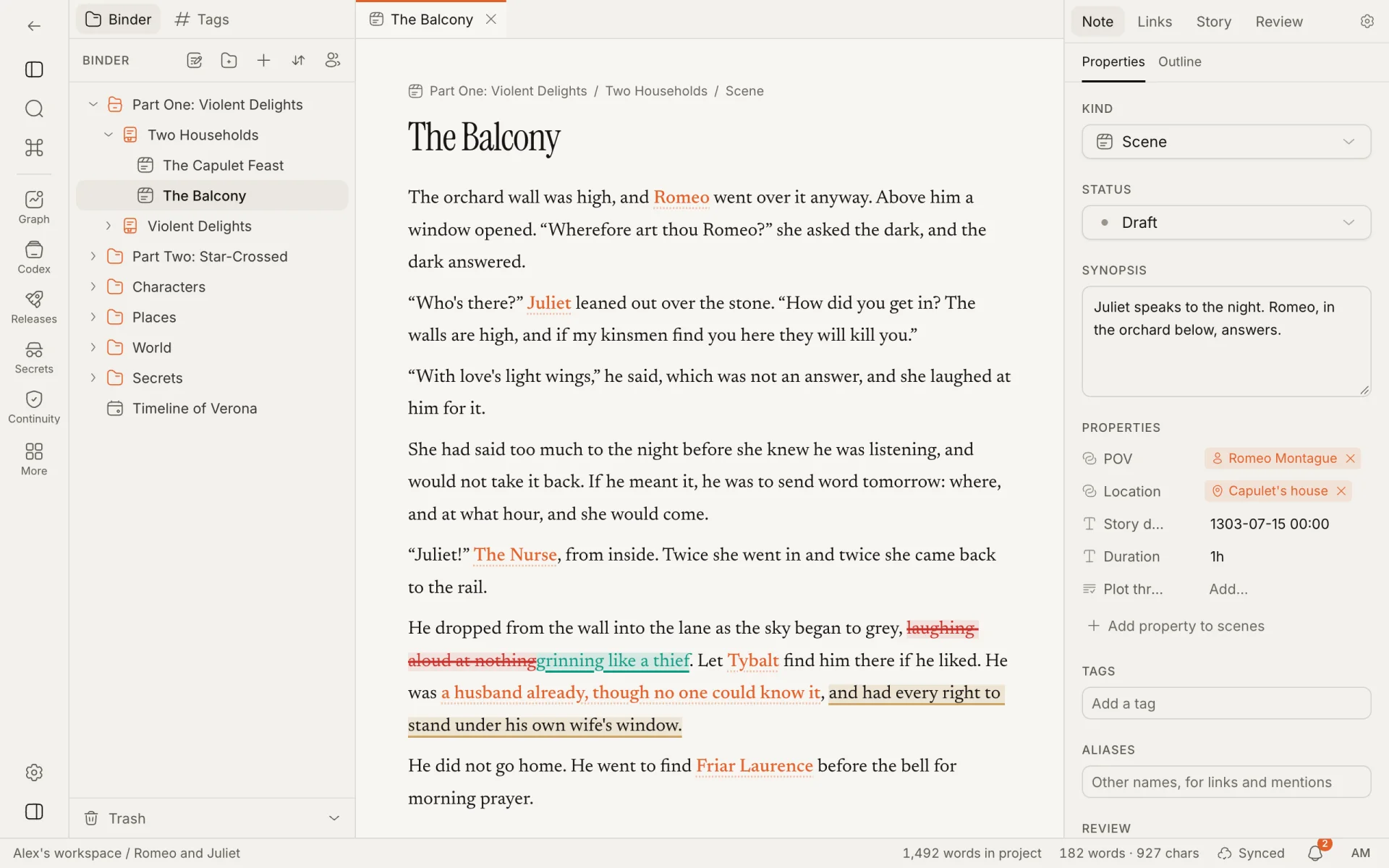
From left to right:
| Part | What it is |
|---|---|
| Ribbon | A strip of buttons. Each view button opens a view: graph, codex, outline and so on. See The ribbon. |
| Binder | The tree of everything in the project, with a Tags tab beside it. See The vault and the binder. |
| Panes | The middle. Notes and views open here as tabs. You can split a pane right or down and drag tabs between panes. With nothing open, it shows the project home. |
| Inspector | The right sidebar, about the note that is open. Its tabs are Note (Properties and Outline), Links, Story and Review (Comments and History). Story is there when the World bible, Releases & reveals or Research module is on, and an AI tab when the AI agent is. |
| Status bar | Along the bottom: the workspace and project, word counts for the note and the project, the words you have typed this session, whether your changes are synced, who else is here, notifications and your account menu. |
Drag the edge of the binder or the inspector to resize it. The widths are remembered in your browser.
On a phone or a narrow window, the binder and the inspector open over the page as drawers, and the ribbon becomes a bar across the top with a Views and commands menu.
The ribbon
From top to bottom:
| Button | What it does |
|---|---|
| Arrow | Back to the workspace's projects, or to "Shared with you" if you are a guest. |
| Toggle binder | Shows or hides the binder (⌘\). |
| Quick switcher | Jump to a note by name (⌘O). |
| Command palette | Every command, searchable (⌘P). |
| The views | A few views, each with its name under the icon. |
| More | Every other view, and the settings below. |
| Project settings | Opens the project settings. |
| Toggle inspector | Shows or hides the inspector (⌘⇧\). |
A project has twenty or more views. The ribbon starts with five, chosen by how the project was started, and the rest are under More. From there the ribbon is yours: right-click a view for Move up, Move down, Remove from ribbon and Customize…. Your arrangement is saved with your account, so it is the same in every project and on every device, and nobody else's ribbon changes. See Customising the ribbon.
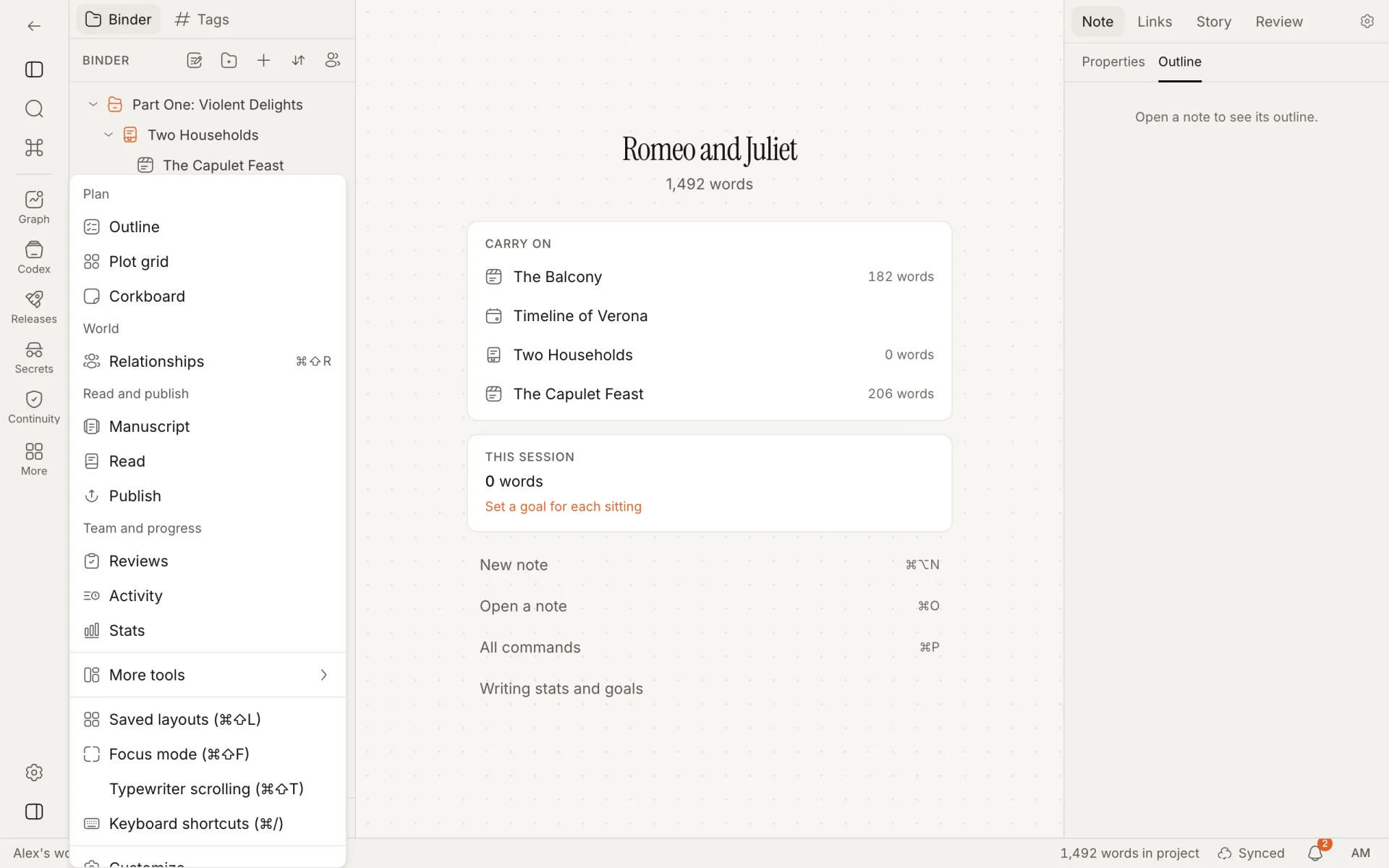
The More menu
| Section | What is in it |
|---|---|
| Views | Every view that is not in your ribbon, grouped as Plan, World, Read and publish, Team and progress and Tools, with their shortcuts. |
| More tools | The modules this project has not switched on. Choosing one opens the prompt described below. Only people who manage the project see it. |
| Saved layouts | Switch between saved arrangements of panes (⌘⇧L). |
| Focus mode | Hides everything but the active pane (⌘⇧F). Escape leaves. |
| Typewriter scrolling | Keeps the line you are writing in the middle of the screen (⌘⇧T). |
| Keyboard shortcuts | The list of shortcuts (⌘/). |
| Customize… | The ribbon, the inspector, the look of the page, the project home and the guidance. |
The project home
When no note is open, the panes show the project's title, its word count and four blocks:
| Block | What it shows |
|---|---|
| Carry on | The four notes changed most recently, with their word counts. In an empty project: Write the first scene. |
| This session | Words typed this sitting, against your session goal if you have one. See Writing goals. |
| Next, when you want it | The next step of the checklist, with Show me where or Turn on …. Gone once the checklist is finished or closed. |
| Shortcuts | New note, Open a note, All commands, and Writing stats and goals. |
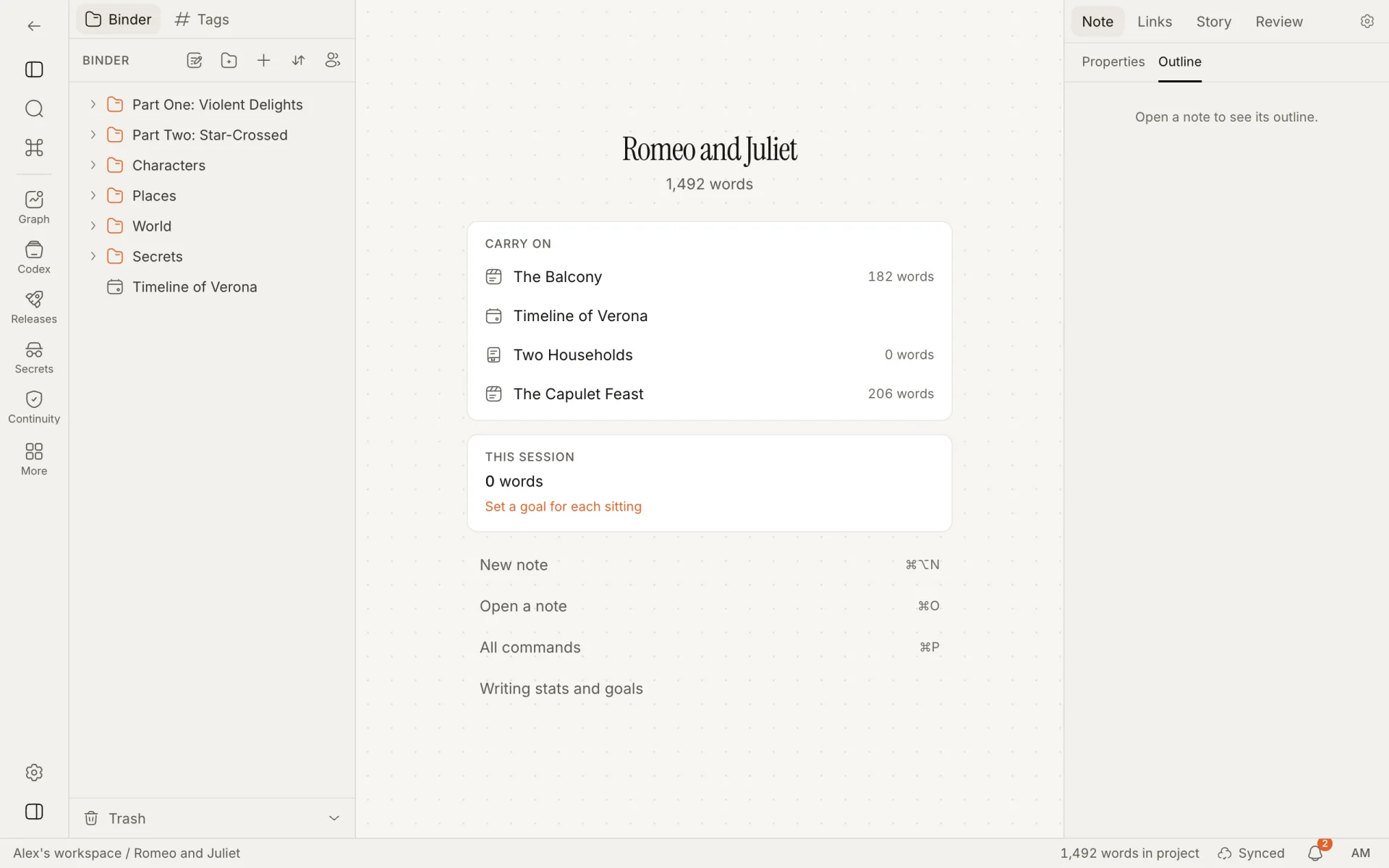
Choose which blocks are shown, and their order, under Customize… → Project home.
Find anything
| Keys | What it does |
|---|---|
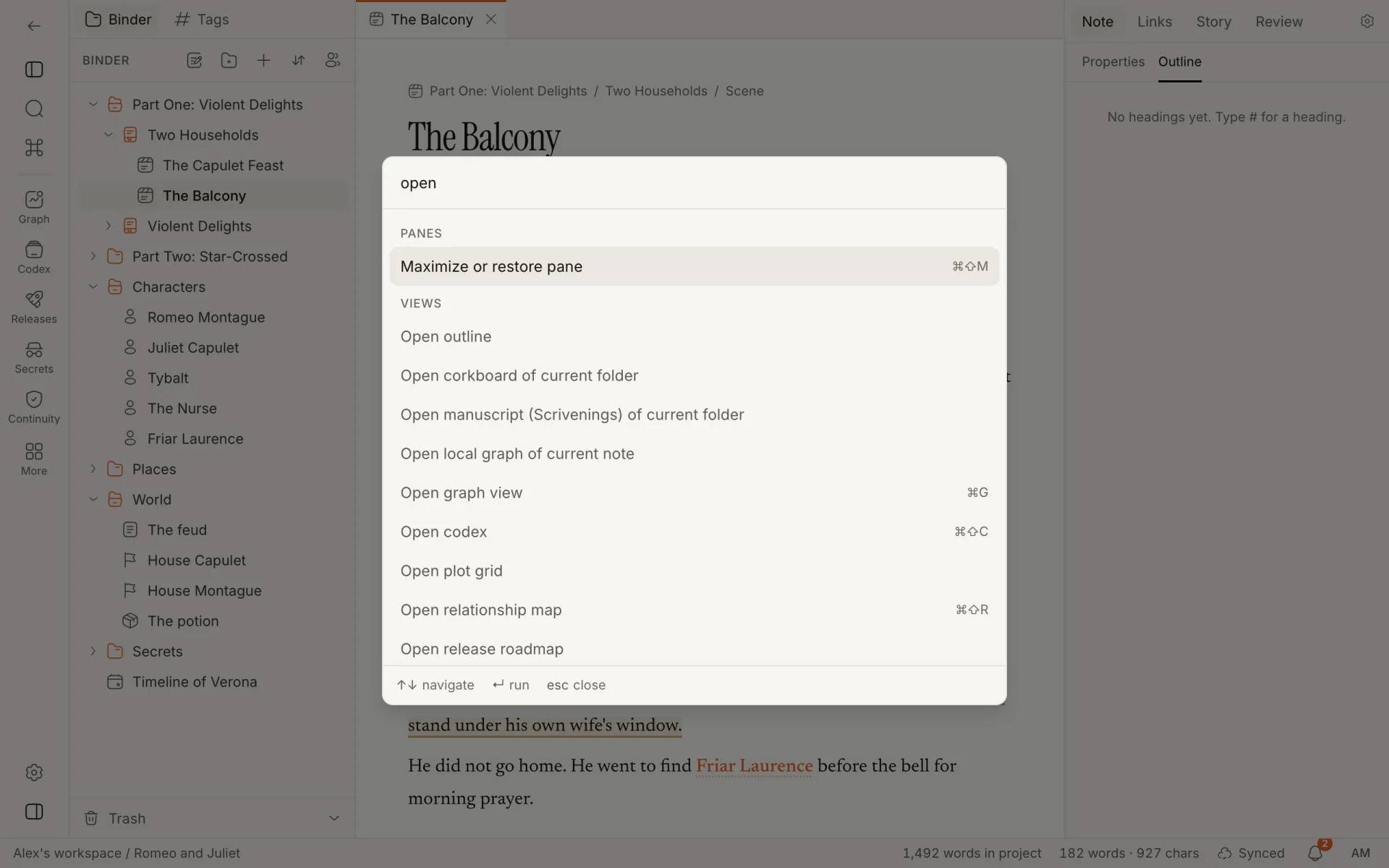
⌘O | Quick switcher: jump to a note by name |
⌘⇧O | Search project |
⌘P | Command palette: every command, searchable |
⌘/ | The list of keyboard shortcuts, where you can change them |
⌘\ | Show or hide the binder |
⌘⇧\ | Show or hide the inspector |
On Windows and Linux, use Ctrl where these docs say ⌘.
Changed shortcuts are stored in your browser, so they don't follow you to another computer.
Next
- The vault and the binder covers the binder, tabs and panes, the inspector and the status bar in full.
- Views lists every view the ribbon can open.
- Customising the ribbon is how you choose which views stay in it.
How is this guide?
Your first project
From signing up to your first scene: your account, workspaces and projects, the three ways to start, and the getting-started checklist.
Sample projects
Two small finished projects to look around in, Romeo and Juliet and a tabletop campaign, each with one mistake for you to find and fix.