 Plotra Docs
Version history
Go back to how a note read before. How versions are made, how to look at one, and how to name, restore or delete it.
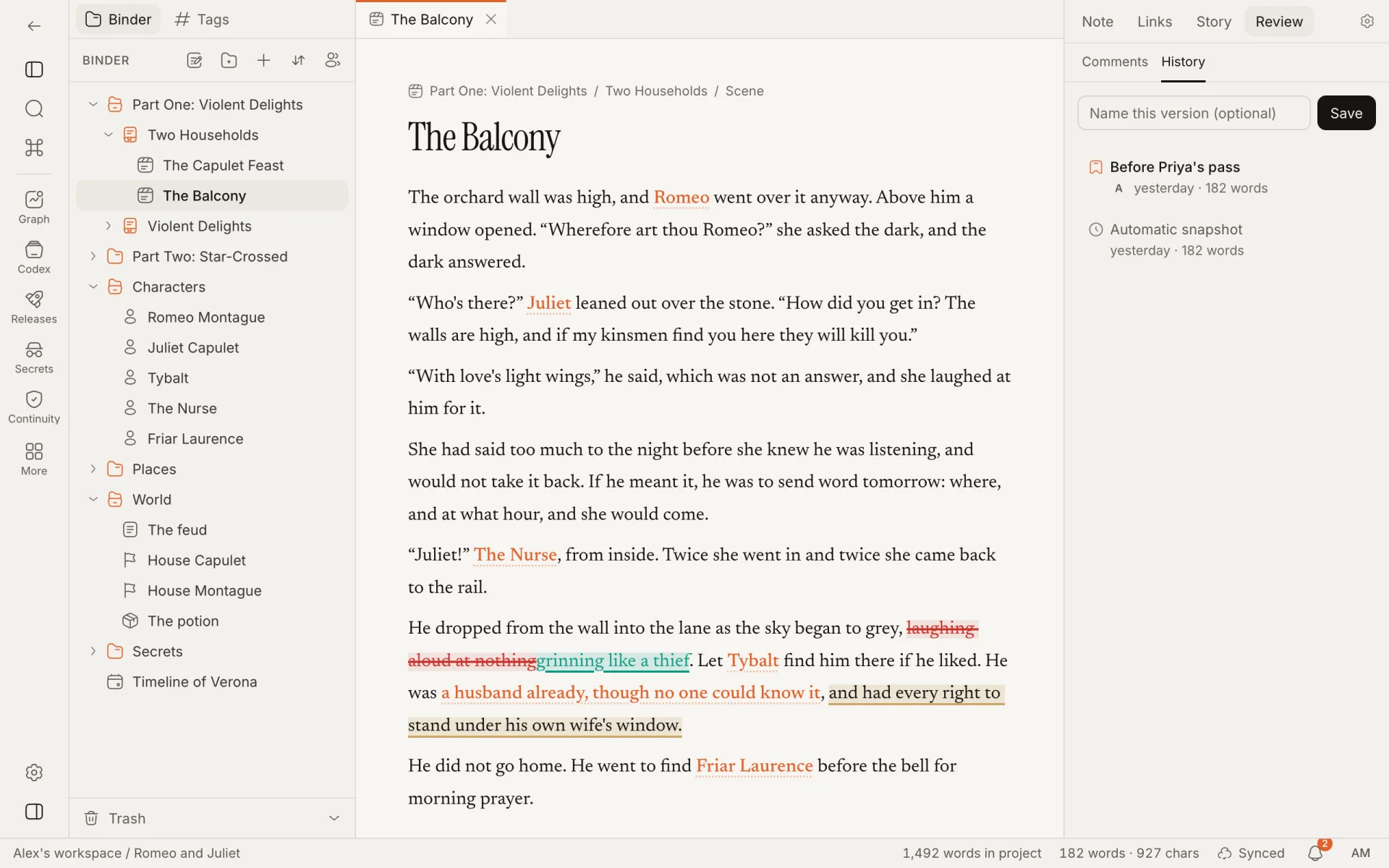
Version history lets you go back. A version is a complete copy of one note at one moment. It lives in the inspector, under Review → History; the "Show version history" command opens it.
How versions are made
| Kind | When | Kept |
|---|---|---|
| A version you save | When you click Save at the top of the panel. Type a name first if you want one ("Before the rewrite"); names can be up to 80 characters. | Until someone deletes it |
| An automatic snapshot | While a note is being edited, whenever its newest version is more than half an hour old. Nobody has to do anything. | The latest 40 for each note. Older ones are removed. |
| A safety copy | Just before a version is restored, named "Before restoring “name”". | Until someone deletes it |
A note that nobody edits gets no new snapshots. Giving an automatic snapshot a name turns it into a saved version, so it is no longer removed.
The list shows the latest 200 versions of the note, newest first, each with who saved it, when, and its word count.
Looking at a version
Click a version to open it.
| Tab | Shows |
|---|---|
| Changes since | What is different between that version and the note now. Green was added since the version; red was removed. This is the tab it opens on. |
| This version | The text as it was. |
For a canvas or a dialogue there is nothing to compare: the dialog says how many cards, lines and connections the version holds, and you restore it to see it.
Renaming, deleting and restoring
| Button | What it does | Who |
|---|---|---|
| Rename | Gives the version a name, or a new one. | Anyone who can edit |
| Delete | Removes the version for good. | Whoever saved it. Owners and admins can delete automatic snapshots. |
| Restore this version | Replaces the note's content with the version's. The current content is saved as a version first, so a restore can be undone by restoring that one. | Anyone who can edit |
A restore is a normal edit: everyone with the note open sees the text change, and it applies directly even in suggesting mode.
Viewers and commenters can open and compare versions. They can't save, rename, delete or restore.
Things to know
- Version history works for text notes, canvases and dialogues.
- Versions count toward the workspace's storage; see Limits. When storage is full, saving a version is refused with a message, and automatic snapshots are skipped without one. Versions already saved are never removed to make room.
- Saving a named version, naming one and restoring one are listed in the activity feed. Unnamed and automatic versions are not.
- You can save up to 120 versions an hour.
- A version is a copy of one note. There is no version of a whole project; for that, cut a release with the Review & editorial module, or export the project.
How is this guide?
Comments and suggestions
Talk about the text without changing it, and propose changes that someone accepts or rejects. Threads, mentions, reactions and suggesting mode.
Notifications and activity
Know when a co-writer needs you without watching the project. The bell, the activity feed, and choosing which notifications are emailed.