 Plotra Docs
Inviting and sharing
Let people in: invite them to the workspace, share a single project by email with a viewer, a commenter or an editor, or switch on a read-only link.
There are two ways to let someone in. Invite them to the workspace and they can open and edit every project in it. Share one project and they see that project and nothing else. What each role can do is on Working together.
Inviting people to the workspace
Invite someone to the workspace when they should work on everything in it. To let someone into one project only, or only to read or comment, share the project instead.
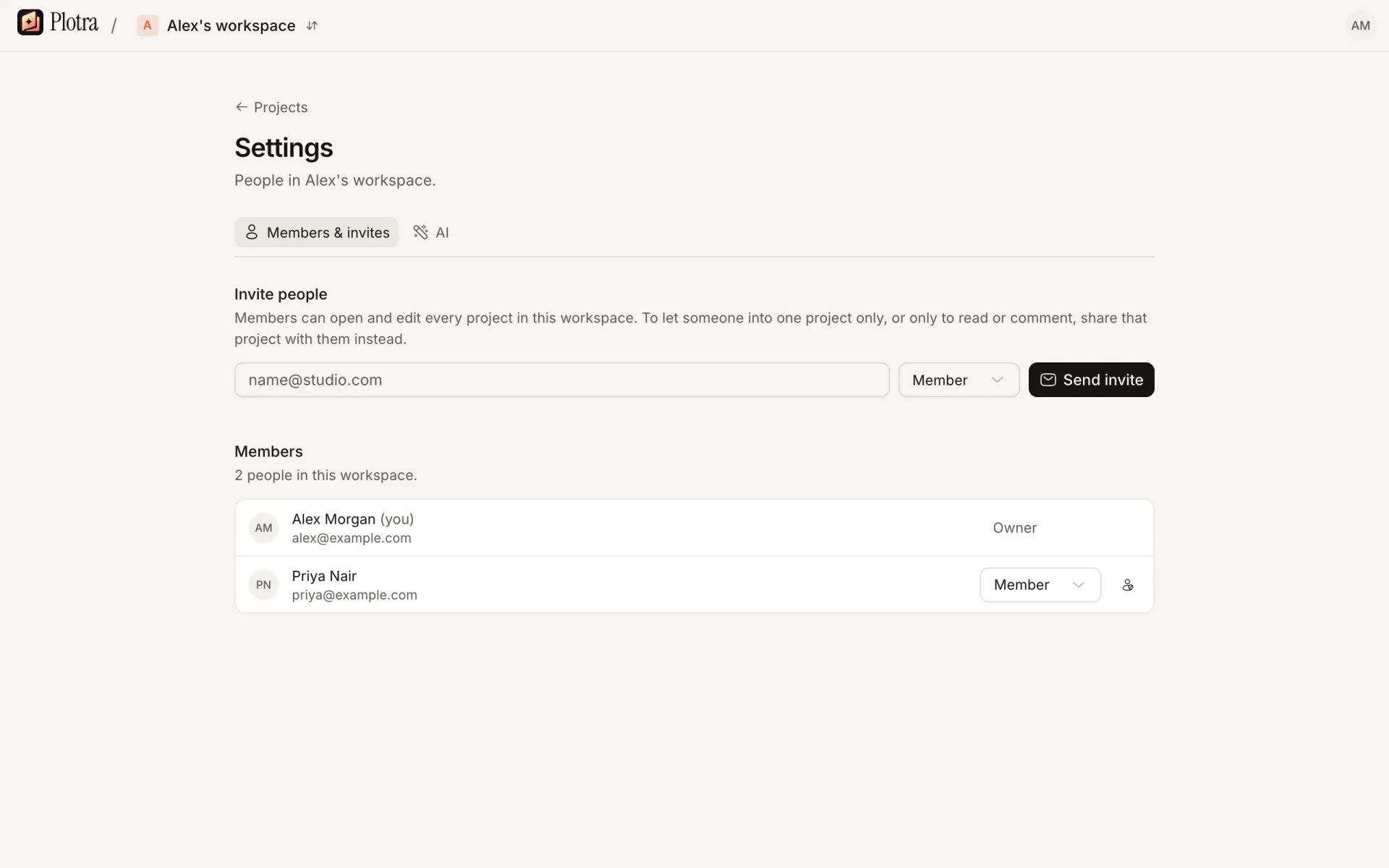
Only owners and admins can invite.
- On the workspace's home page, click Settings. The Members & invites tab is open.
- Under Invite people, enter an email address and pick Member or Admin.
- Click Send invite.
They get an email, "Your name invited you to Workspace on Plotra", with a link to accept.
Accepting an invitation
The link opens a page titled Join Workspace, which says who invited you and whether as a member or an admin.
- If you aren't signed in, you are sent to sign in first and brought back afterwards. If you have no account yet, choose Create an account on the sign-in page; you come back to the invitation the same way.
- Accept and join makes you a member and opens the workspace. The person who invited you gets a notification.
- Decline turns the invitation down.
You must be signed in with the address the invitation was sent to. Otherwise the page says Invitation not available: "It may have expired, been cancelled or already been used, or it was sent to a different address". Ask for a new invitation to the address you use, or sign in with the other one.
Open invitations
Invitations that haven't been answered are listed under the invite form, each with its role, who sent it and the day it expires.
| What | How it works |
|---|---|
| Expiry | An invitation is good for 48 hours. After that it leaves the list and its link stops working. |
| Sending again | Invite the same address again. The same invitation is emailed again and is good for another 48 hours. It keeps the role it was first sent with; to change the role, cancel it and invite again. |
| Cancelling | Click Cancel beside it. The link stops working at once. |
| Seats | Open invitations count as members against the plan's limit, so the last seat can't be offered to several people. Inviting an address that already has an open invitation doesn't use another seat. |
When the workspace is full, the form says how many members it can have. You can send up to 40 invitations an hour.
Changing someone's role and removing a member are on Your account and workspaces.
Sharing a project
Share a project to let someone into it and nothing else. Only the workspace's owners and admins can share; the button isn't shown to anyone else.
- In the project, click Share project… at the top of the binder.
- Enter an email address and pick a role: Viewer, Commenter or Editor. The dialog starts on Commenter, and a line under the form says what the chosen role can do.
- Click Share.
What happens next depends on the address:
- If it belongs to a Plotra account with a verified address, they have access at once, and the dialog says "Shared with address". They also get a notification under their bell.
- Otherwise the dialog says "Invitation sent to address", and the access goes to whoever opens the emailed link signed in with that address.
Either way they get an email, "Your name shared “Project” with you on Plotra", with a link to open it. Plotra sends no address-verification emails of its own, so an account counts as verified when it signs in with Google; everyone else gets in through the emailed link.
The Share dialog
| Part | What it shows |
|---|---|
| Shared with | Everyone the project is shared with, with their role. Someone who hasn't opened the link yet is marked "Invited: hasn't opened the link yet". Someone who is also in the workspace is marked "also a workspace member". |
| Workspace · n members | The workspace's members and their workspace roles. They are listed for information: "Workspace members can open and edit every project. Owners and admins also manage sharing and settings." |
| Anyone with the link | The read-only link. |
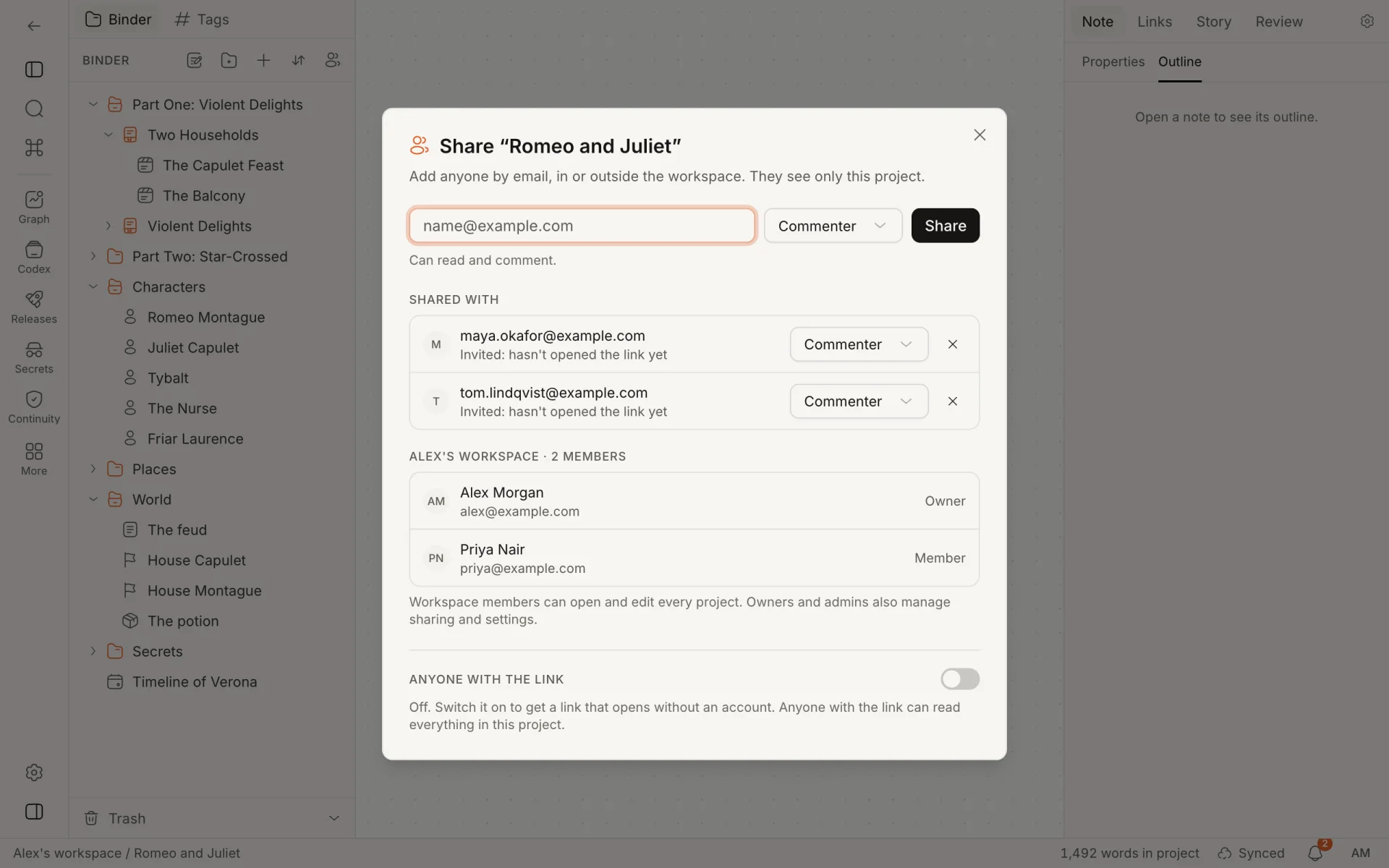
To change a role, pick another one beside the person's name. Sharing again with the same address also changes their role, and sends the email again. To take access away, click the cross beside them.
Removing access takes effect on their next request. If they have a note open, live updates stop for them within ten minutes.
Opening a shared project
The link in the email opens the project. If you aren't signed in, you sign in or create an account first and are brought back.
| What you see | Why |
|---|---|
| The project | You are signed in with the address it was shared with. From now on the access belongs to your account. |
| This was shared with a different address | The invitation went to another address than the one you are signed in with. The page shows part of that address so you can recognise it. Sign in with it, or ask for the project to be shared with the address you use. |
| This link no longer works | The project may have been deleted, or your access removed. Ask whoever shared it to send it again. |
Shared with you
Projects from workspaces you don't belong to are on your Shared with you page. Each card shows the project, the workspace it lives in, your role and when it last changed.
- If you have no workspace of your own, this page is where Plotra opens, with a Start your own project button.
- If you do, a Shared with you link appears on your workspace's home page once something is shared with you.
Inside a shared project, the way back is the "Back to shared projects" command.
Limits
- A project can be shared with 5 people on the Free plan and 200 on Pro. Everyone in the Shared with list counts, whether or not they have opened the link. Changing a role adds nobody.
- You can share up to 60 times an hour.
- You can't share a project with yourself.
- A shared guest can't remove themselves from a project; ask an owner or admin to do it.
A read-only link
The Share dialog can also make one link for the project that opens without an account, for reading only. Anyone who has the link can read the project, so treat it like a public page.
Under Anyone with the link, flip the switch on. The dialog warns "Anyone with the link can read everything in this project, without an account. They can't edit or comment." and shows the address, which starts with /p/.
| Control | What it does |
|---|---|
| The switch | Turns the link on and off. Switched off, the link stops working at once. Switched back on, the same link works again. |
| Copy | Copies the address. |
| Reset link | Makes a new address, after asking. The old one stops working at once, for everyone who has it. |
There is one link per project, and no way to choose what it shows.
What a visitor sees
A visitor gets a plain reading page: the project's title, a note saying "Read-only. Made with Plotra", and a link to sign up. The front page shows the project's title and description, a Start reading link to the first note that isn't a folder or a board, and the top level of the binder. The binder is on the left (behind the menu button on a phone), and the selected note is on the right.
| In the project | In the read-only link |
|---|---|
| Notes | Every note outside the trash, with its kind, title, synopsis, tags and filled-in properties |
| Text | Shown with its formatting. Scripts keep their layout. |
| Links between notes | Work, and stay inside the link. A link to a note in the trash or in another project becomes plain text. |
| Embedded notes | Shown as "Embedded:" and a link to the note |
| Citations | Written out in the project's citation style |
| Images uploaded into a note | Shown (PNG, JPEG, GIF, WebP and AVIF) |
| Other files (PDFs, clipped pages, anything else attached) | Not served |
| Canvases, timelines and dialogues | Listed, but each shows "This is a … board. Open the project in Plotra to see it." |
| Comments, version history, activity, who is online | Not shown |
| Pending suggestions | The marks are not shown, so the text appears as it stands: suggested additions and text suggested for deletion both read as ordinary text |
| Views (outline, corkboard, graph and the rest), search | Not available |
A visitor can't edit, comment, export or see who else is reading.
The link shows everything
The read-only link ignores the spoiler horizon and every reveal setting. Notes that are not yet revealed, passages tagged for a later release, and passages marked "Never" are all shown. Canon and reveal tags themselves are not displayed, so nothing tells the reader that a passage was meant to be hidden. To give someone a version without spoilers, send them an export or a wiki made at a spoiler horizon; see Import and export.
Other things to know:
- The pages ask search engines not to index them, and the address is long and random. It is still a secret only as long as nobody passes it on.
- A link that is switched off and a link that never existed look the same to a visitor: a "not found" page.
- An address that asks for more than 300 pages and images in a minute is shown "That's a lot in a short time" and has to wait a minute.
- You can switch the link on, off or reset it up to 60 times an hour.
How is this guide?
Working together
Write with co-writers live and get feedback without sending files. Who can do what, what happens when two people write at once, and where each tool is covered.
Comments and suggestions
Talk about the text without changing it, and propose changes that someone accepts or rejects. Threads, mentions, reactions and suggesting mode.